
 Business Apps·27 August 2026·11 min read
 Canvas apps offline with Dataverse: the new online mode and the FetchXML editor in the offline profile
Picture a mid-sized industrial maintenance and field-service company. Its technicians work where it hurts: the basement of a factory hall, a rural substation, behind thick concrete walls. Exactly where mobile coverage stops. The Work Orders, Customer Assets, bookings, checklists and photos live in Dataverse — and the canvas app on the company phone has to keep running as if nothing happened. And when the technician climbs back out of the basement, the same app should pull the live stock level before installing a spare part.
That’s no longer a special request; it’s been standard functionality since mid-2025 — with one important addition that landed in Preview in 2026. This article shows what really happens when a canvas app goes offline, and how to configure it so it holds up in the field.
If you haven’t yet sorted out where canvas and model-driven diverge, the fundamentals are in What actually is a Power App?.
1. The problem: the app needs data, the device has no signal
The technician opens the app in the morning, loads today’s work orders, drives to the site — and loses the connection on the way. Without offline capability, from the first dead zone onward all they see are loading spinners and empty galleries. Write an inspection finding, and it’s gone. In maintenance, inspection and field service, that’s the norm, not the exception.
2. What you see first
Enable offline for a canvas app and at first everything feels like before — only faster. Galleries load with no noticeable latency, even in the basement. The catch: this only applies in the native mobile player (iOS, Android, Windows). In a web browser, a canvas app is never offline. Anyone testing the app in a browser and wondering why “offline” does nothing is sitting right in that trap.
3. What technically really happens
Canvas offline is offline-first. This is where most of the misunderstandings begin:
- In an offline profile, you define which tables, columns and filtered rows belong on the device.
- On sync, this data is copied into a local SQLite database on the device.
- After that the app always reads from this cache — even with a perfect connection. Writes land locally first.
- As soon as a connection is available again, the app syncs in the background.
So offline-first means: the app doesn’t query Dataverse live, it queries its local cache. That’s fast and robust, but it also means the user by default never sees the absolutely current server state — only the state of the last down-sync.
The sync itself is nuanced:
- Down-sync runs incrementally on an interval you set per table (optimized delta sync: changes only; smart sync skips when nothing happened).
- Up-sync goes per column and immediately, the moment there’s signal.
- Conflicts resolve by last-write-per-column-wins — writes go back column by column, which is why a sync practically never fails on a conflict. If a server-side validation rejects the change, there’s a local rollback and an entry in the Dataverse Sync Error table.
Important for expectation management: the configurable conflict-resolution settings in the PPAC apply only to model-driven, not to canvas. On canvas, conflict resolution is automatic — you can’t change it.
4. The obvious but wrong solution
The first reflex: enable offline, take the auto profile (the one Power Apps offers automatically) and call it done. With a small data model that gets by. With our maintenance company it doesn’t.
The auto profile knows no filters. It loads every row the user is permitted to see. On a Work Order table with a six-figure row count that means: multi-minute initial syncs, device storage filling up, and sync timeouts. Rule of thumb: from around 15 tables, or the moment you need to filter, a dedicated custom profile is required.
5. The solid solution
Cut the offline profile cleanly
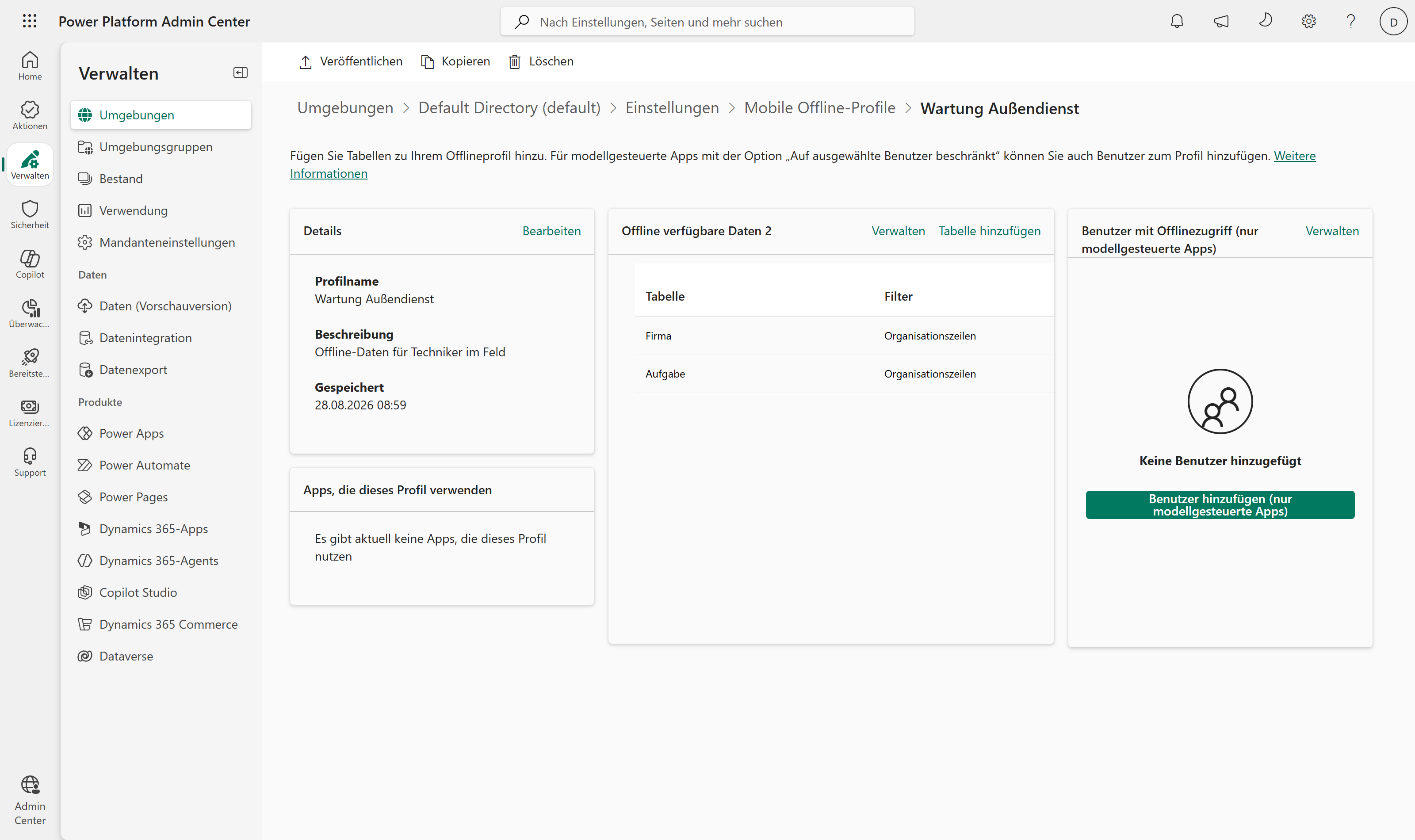
Path in the Power Platform admin center: Environment > Settings > Mobile configuration > Create new profile (alternatively, directly in Power Apps Studio under Settings > General > “Can be used offline”, provided the app is in a solution). In the profile you set, per table: which columns, which relationships, which media, which sync frequency — and above all the filter per table.
For the maintenance company, concretely that means:
- Customer Assets only with
statecode = active— nobody needs decommissioned assets offline. - Bookings only those of the signed-in technician (
eq-userid) for today and the next seven days. - Cut the relationship chain Work Order → Booking → Resource so it fits the limit (more on that below).
- Photos via image columns, but sparingly (max. 14 image columns in total).
Turning on offline in the app
The profile alone isn’t enough — the app has to use it. Two things that cost time in practice:
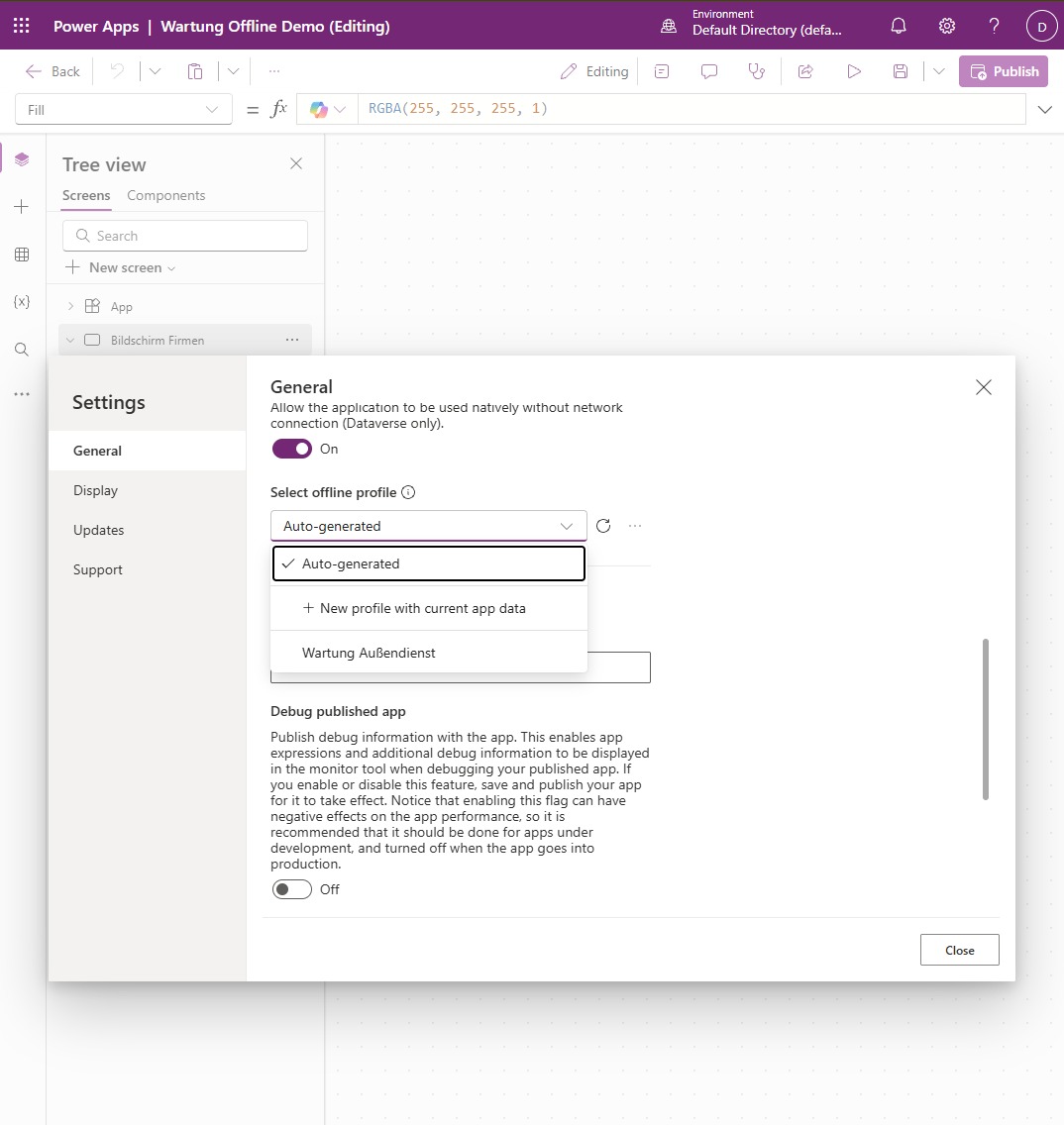
- The “Can be used offline” toggle (Studio → Settings > General) only appears if the app is in a solution. If it’s missing, that’s almost always the reason — put the canvas app in a solution and it shows up.
- Under “Select offline profile” the default is “Auto-generated”. Deliberately set your published custom profile here (ours is “Wartung Außendienst”) — a profile that isn’t published yet won’t even appear in the list.
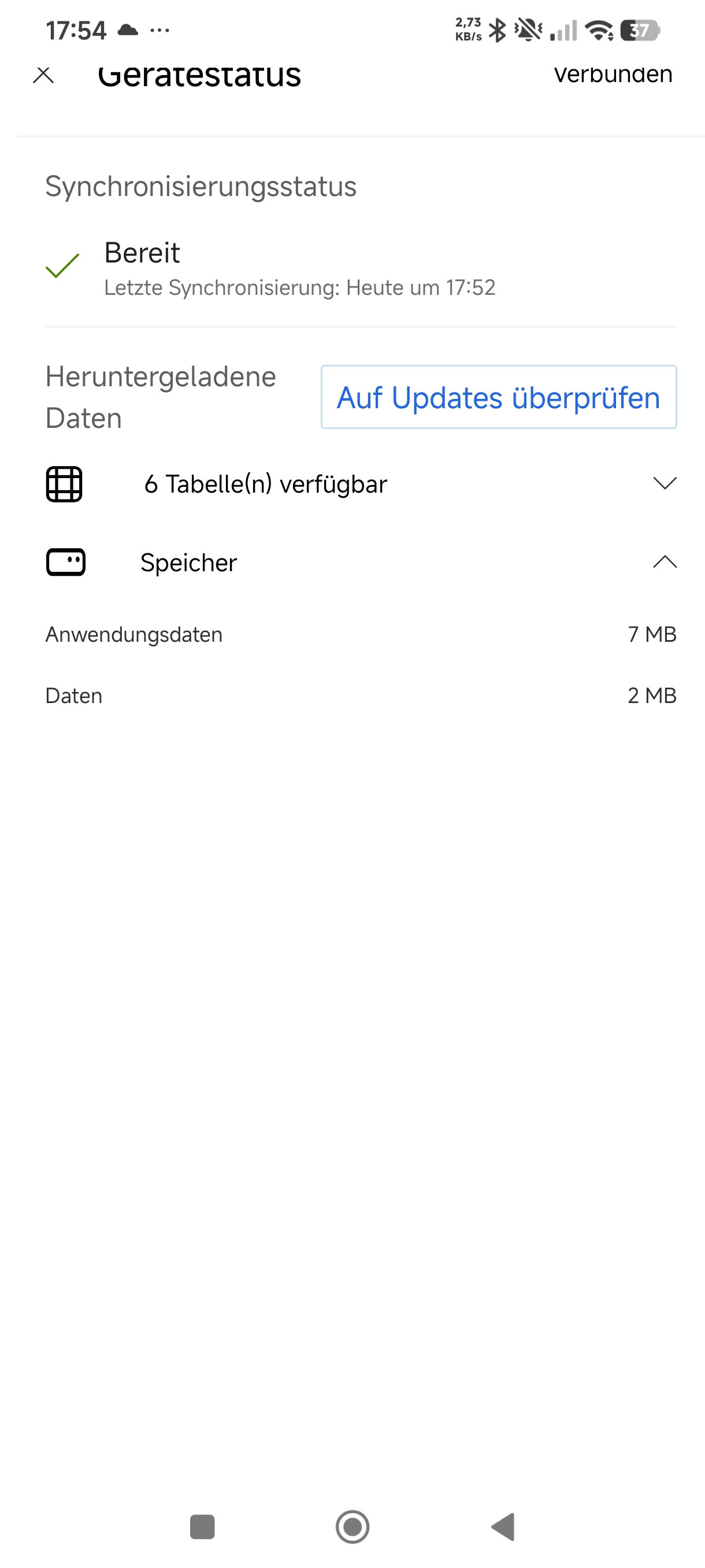
When you turn it on, Power Apps automatically inserts an offline-template screen with a globe icon. That icon opens the device status page (shown above) and reflects the sync state by color. For the technician to reach it, move the template screen to the front (start screen) or add a globe control to the main form. Finally: save and publish — the mobile player always loads the published version.
An honest field note on the side: with “Auto-generated” the app downloaded 0 tables in testing — nothing happened offline. Only with the curated, published profile did it sync real data (on the device status page: 6 tables, ~9 MB). Curating the profile isn’t a nice-to-have, it’s the precondition for having any data offline at all.
The FetchXML editor in the offline profile (Preview)
Here’s the tool that finally tames large tables. Instead of only using the point-and-click filters, you can write a table’s filter directly as FetchXML.
Preview / GA: The FetchXML editor has been in Preview since 2026-03-17, GA is planned for September 2026 (planned/projected — subject to change). Don’t use it for critical production scenarios without a fallback.
How to get there: Offline Profiles > profile > Edit profile > pick a table > filter “Custom” or “Related rows” > Edit filter > View/Edit FetchXML > Apply + Save.
For our technician’s bookings for today, the filter could look like this:
<fetch>
  <entity name="bookableresourcebooking">
    <attribute name="bookableresourcebookingid" />
    <attribute name="name" />
    <attribute name="starttime" />
    <attribute name="bookingstatus" />
    <filter type="and">
      <condition attribute="starttime" operator="next-seven-days" />
      <condition attribute="ownerid" operator="eq-userid" />
    </filter>
    <link-entity name="msdyn_workorder" from="msdyn_workorderid" to="msdyn_workorder" link-type="any">
      <filter type="and">
        <condition attribute="statecode" operator="eq" value="0" />
      </filter>
    </link-entity>
  </entity>
</fetch>
The editor can do more than the click filter: hierarchical conditions (under, eq-or-under …), links to unrelated tables and latematerialize="true" for heavy joins. That’s exactly how you push the volume of data reaching the device toward zero — the best protection against sync timeouts on tables with 100,000+ rows.
Know the editor’s limits before you run into a wall:
- Max. 500 filter clauses per query.
- Only
link-type="any"ornot any— no inner/outer join. pageandcountare ignored.
The new online mode (Preview)
Until now the rule was: offline-capable always meant reading from cache, never live. That changes in 2026.
Preview / GA: “Enable online mode” is in Preview, GA planned for September 2026.
An offline-capable app can now switch between offline mode (reads from the cache) and online mode (reads live from Dataverse, in real time) — without giving up offline capability. You enable it under Settings > Online mode. The end user then switches on the offline status page; the app remembers the last mode chosen.
For the maintenance technician, that’s the missing piece: standing at the customer’s storeroom and wanting to know whether the spare part is available right now, they switch to online mode and see the real live stock level. Drive into the next hall with no signal, and they keep working offline. Always sensible when data freshness is critical — stocktaking, inspection, inventory checks — without losing the offline safety net.
Push notifications in wrapped apps (Preview)
For branded (wrapped / white-label) apps, push notifications join in.
Preview / GA: Push in custom-branded apps has been in Preview since 2026-05-08, GA planned for September 2026. Already GA since 2026-04-23: “Download wrapped apps directly from Dataverse”.
The toggle sits in the wrap wizard (Android + iOS). The mechanics run through Google Firebase (FCM): register a Firebase project and app, upload google-services.json or .plist. Sending happens via a Power Automate flow whose HTTP action calls Firebase on a Dataverse trigger (e.g. “new urgent work order assigned”).
6. Diagnosis and decision checklist
Before you roll out canvas offline, walk through these points:
- Does the app run natively? Mobile player only (iOS/Android/Windows), never a browser. Standalone canvas — not embedded, not custom pages, not Teams canvas.
- Is the data source Dataverse? Offline applies only to Dataverse. No SharePoint, SQL or O365 offline (for that, only the old in-memory LoadData/SaveData, ~30–70 MB, without automatic conflict resolution).
- Does the data volume fit? Max. 3,000,000 rows syncable in total. Filter aggressively via the profile (and FetchXML), because offline there’s no server-side delegation — the query runs against local SQLite.
- Do the relationships stay within the limits? Max. 15 relationships per table in the profile, of which max. one M:M or 1:M, no circular ones, no self-lookups. Lookup filters one level deep only, no M:M offline.
- Counted the image columns? Max. 14 image columns across all entities.
- Auto or custom profile? From ~15 tables, or the moment you need to filter: custom profile.
- Do you need live data on site? Then plan for online mode (Preview).
- Monitoring sync errors? Keep an eye on the Dataverse Sync Error table and, if in doubt, build a status page into the app.
7. The uncomfortable boundaries
Canvas offline has gotten good, but it’s not a second, full-blown client. What does not work offline you have to design around from the start:
- Flows do not run offline. Whatever a flow is meant to do happens only after the sync.
- Calculated and rollup columns are not recomputed on the client — only after the sync, on the server. Don’t show the user “fresh” totals that don’t exist offline.
- Power Fx
Relate/Unrelatedon’t work offline, M:M doesn’t, Notes don’t. - Virtual tables and elastic tables are out of scope offline.
- Background sync runs only in the foreground or with the device unlocked — on iOS foreground-only. The sync does not happen while the phone sits in a jacket pocket.
- No server-side delegation offline. Anything you didn’t cap in advance via the profile, you have to search locally.
Canvas vs. model-driven offline
Both use the same engine: offline profiles, SQLite, delta sync, the Sync Error table. Differences:
- Model-driven ships the device status page out of the box; on canvas you build it in yourself via the offline template.
- Model-driven has conflict-detection settings in the PPAC — which, as noted, do not apply to canvas.
- Model-driven is more mature overall. Canvas is catching up right now with online mode and the FetchXML editor.
And an honest planning footnote: the Release Plans are being retired from September 2026 onward, and the GA dates named here (September 2026) are “planned/projected” — they can shift. Don’t build a production roadmap on a Preview date without a fallback.
See also
- What actually is a Power App? — canvas vs. model-driven, and when Power Apps is the wrong choice.
- The old grid is deprecated — what the Power Apps grid control does better — reflow/card-list and mobile behavior in the new grid.
- Git integration in Power Platform — canvas apps and offline profiles versioned cleanly in the repo.
Sources: Microsoft Learn — mobile-offline-works-overview, canvas-mobile-offline-overview, limitations-canvas-apps, resolve-sync-conflicts, fetchxml-editor; Power Platform Release Wave 1 2026 (planned features); Power Platform Blog (canvas offline GA, 2025-06-11). Preview and GA details as of August 2026; GA dates are planned and subject to change.