
 Identity & Security·21 July 2026·6 min read
 Client Secret, Certificate, or Federated Login? The Beginner's Guide to Connections in the Microsoft Cloud
Anyone new to Azure or the Power Platform quickly runs into a confusing set of options: Should the app connect via Client Secret? Or rather a Certificate? What is a Federated Login, and why does everyone say you shouldn’t use Secrets anymore in new tenants? And why does the CLI suddenly pop up a Device Code?
The good news: there’s a simple system behind it. You only have to answer two questions — then the choice almost makes itself.
The two basic questions
- Human or machine? Is a real person signing in (interactively, with password + MFA), or is a service running with no human in front of it — a script, a pipeline, a backend?
- Where does the code run? Inside Azure (VM, Function, Container) or outside (your laptop, GitHub Actions, another cloud, on-prem)?
These two axes determine the mechanism. Everything else is detail.
Terms you need to know as a beginner
- Tenant — your Microsoft Entra ID instance (formerly “Azure AD”). The namespace in which users, apps, and permissions live.
- App Registration (in the portal “App registration”) — essentially the ID-card application for your application in the tenant. Produces a Client ID (public, like a username).
- Service Principal — the concrete identity of the app in your tenant. The App Registration is the template, the Service Principal is the instance with permissions.
- Credential — the proof that the app really is who it claims to be: a Client Secret (password), a Certificate (key pair), or a Federated Credential (trust in an external token).
- Access Token — the time-limited “entry stamp” that Entra ID issues and with which the app accesses resources (e.g. Microsoft Graph, Azure).
- Scope / Permission — what the app is allowed to do (e.g.
User.Read). Separate from the question of how it signs in. - Managed Identity — an identity automatically managed by Azure for code that runs inside Azure — entirely without a credential.
- OIDC (OpenID Connect) — the standard protocol that Federated Logins build on.
Humans: interactive login and Device Code
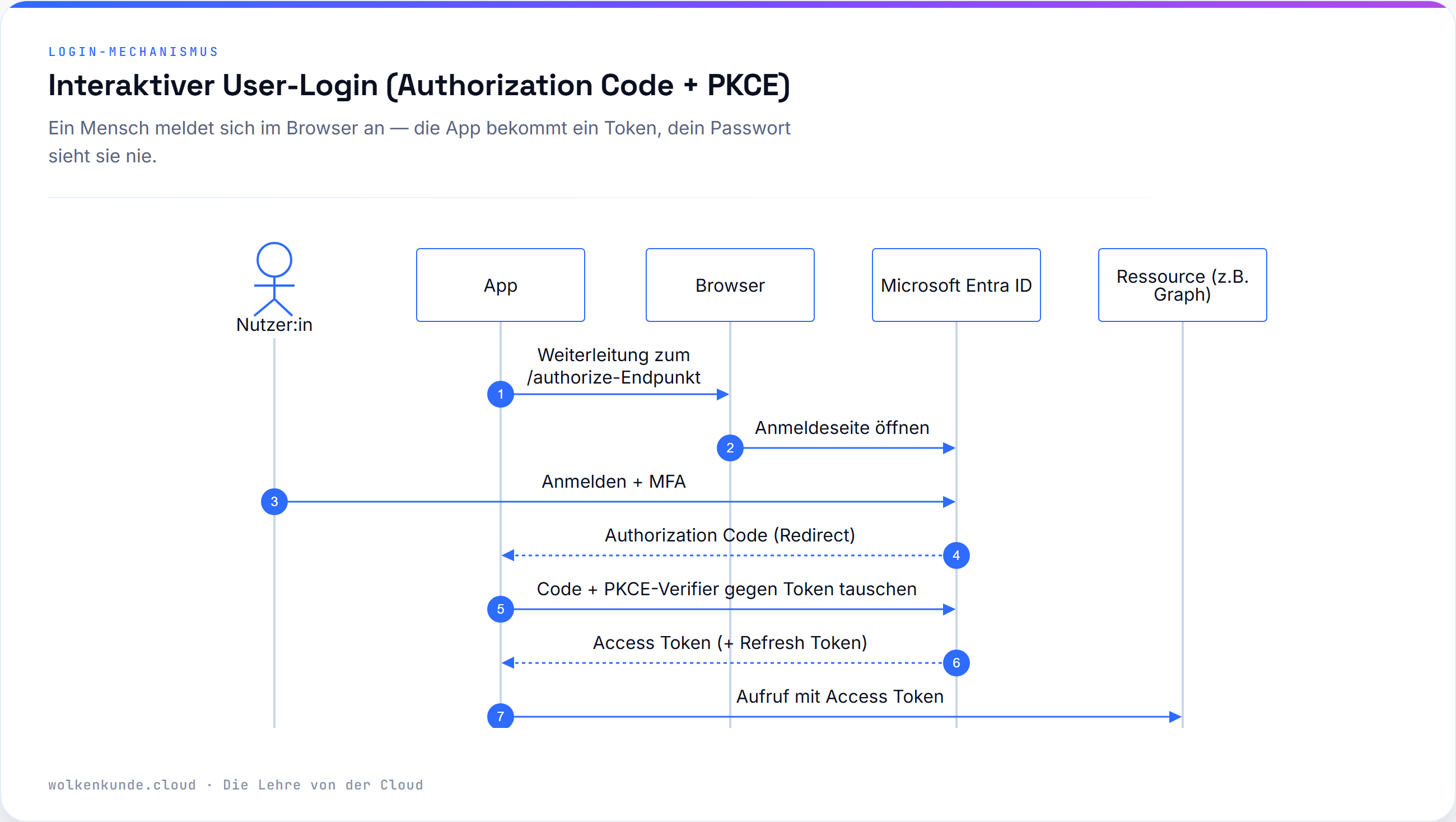
When a real person signs in, the standard is the Authorization Code Flow with PKCE: the app sends you to the browser to the Entra sign-in page, you sign in (including MFA), and the app ends up with an Access Token — without ever seeing your password.
Sometimes there is no browser — for example on a server, in an SSH session, or on a device without a keyboard. For that there’s the Device Code Flow: the app shows you a short code, you open microsoft.com/devicelogin on any device, enter the code, and sign in there.
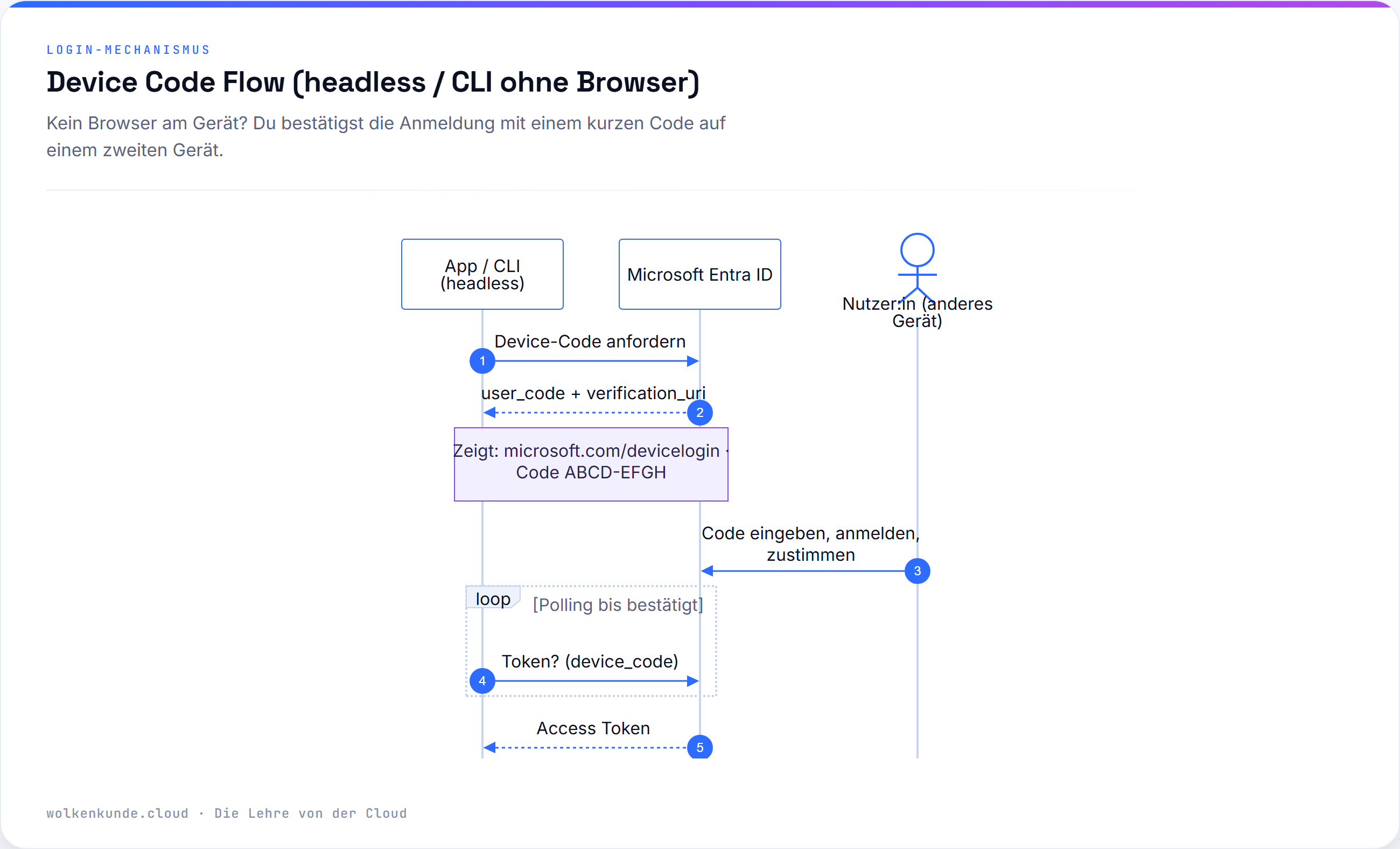
Rule of thumb: Human + browser → Authorization Code + PKCE. Human + no browser → Device Code. Both are interactive; you never enter a password into the app itself.
Machines: Service Principal with Secret or Certificate
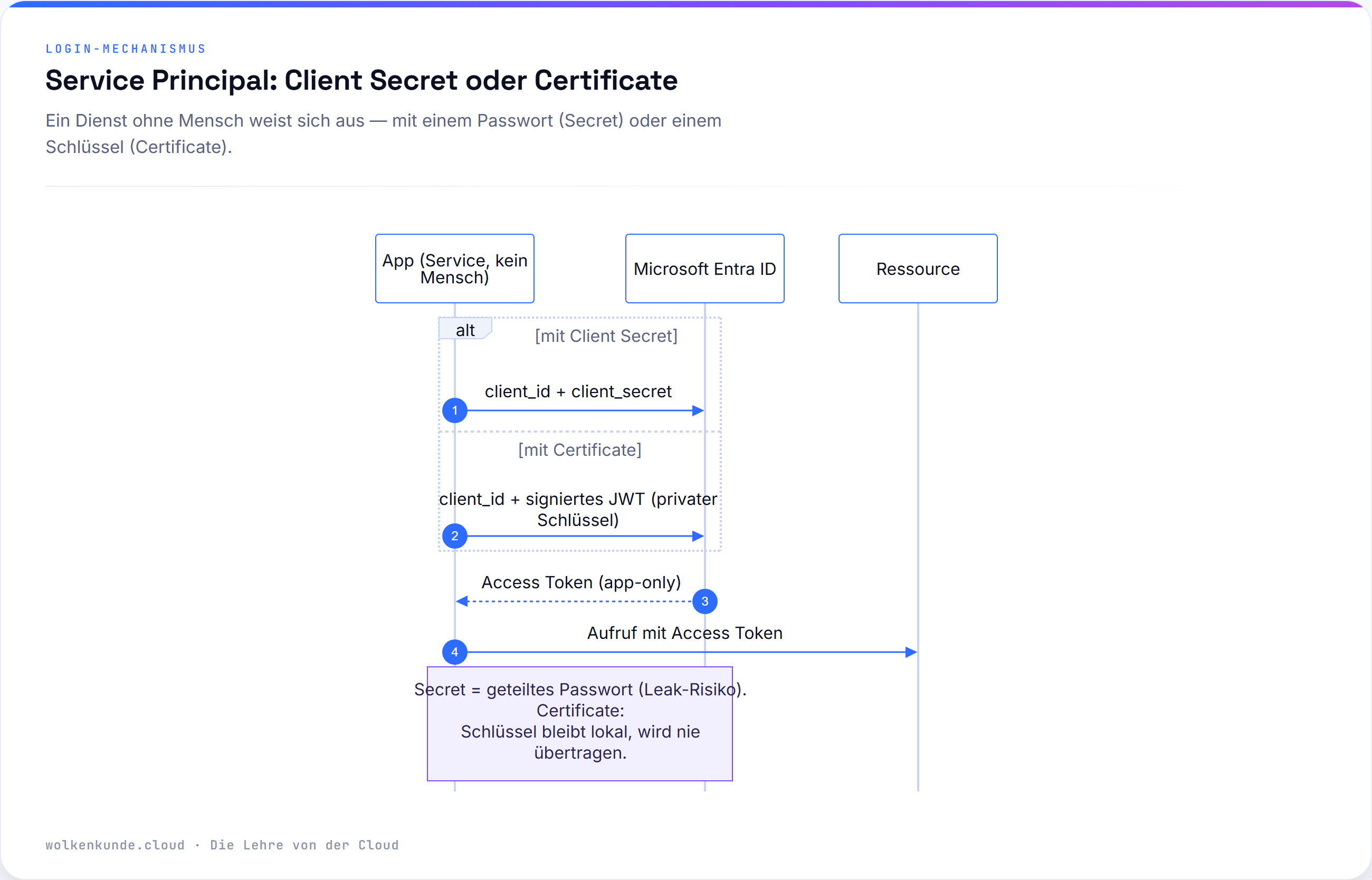
When a service runs without a human, it signs in as a Service Principal via the Client Credentials Flow. The only difference is in the credential:
- Client Secret — a password generated by Entra. Easy to set up, but: it sits in plaintext somewhere (config, Key Vault, CI variable), it expires (at most 24 months, often shorter), and whoever copies it is your app. The most common Friday-evening outage: an expired Secret.
- Certificate — a key pair. The app uses it to sign a short-lived JWT; the private key never leaves the app, no secret is transmitted. More secure than a Secret — but you still have to roll out the certificate and renew it in time.
Federated Login: why it’s the first choice today
Secret and Certificate share the same fundamental problem: there is a secret you have to store, protect, and rotate — and which can leak or expire.
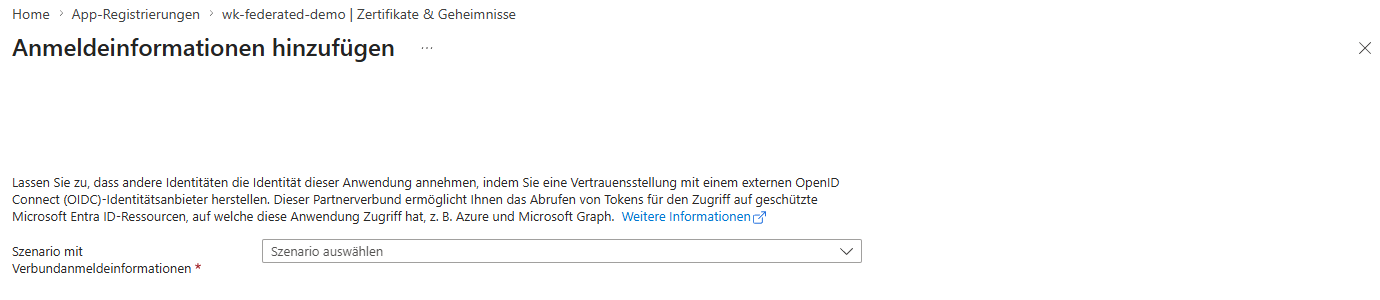
Workload Identity Federation (the “Federated Credential”) solves this by storing no secret in Entra at all. Instead, your App Registration — or a user-assigned Managed Identity — trusts the tokens of an external identity provider: GitHub, a Kubernetes cluster, Google, AWS. The workload obtains a short-lived OIDC token there and exchanges it at Entra ID for an Access Token. Entra verifies the trust based on issuer, subject, and audience — these must match exactly.
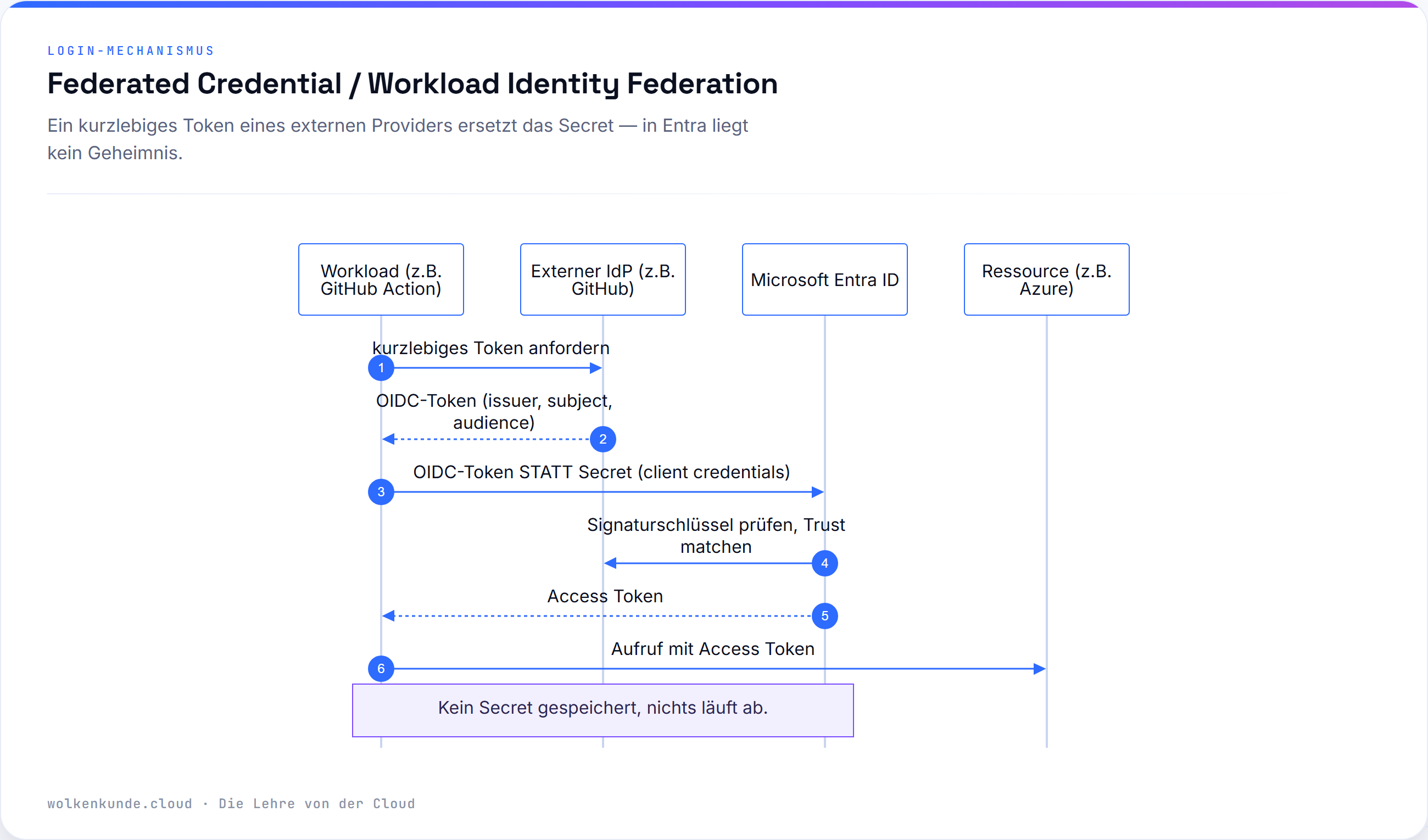
The gain, according to Microsoft: store no Secrets, rotate nothing, nothing leaks, nothing expires. That’s exactly why Federation is the recommended choice for new tenants and scenarios, wherever an OIDC-capable provider is available — GitHub Actions, Azure Pipelines, Kubernetes, other clouds.
Does the code run in Azure? Then Managed Identity
If your code runs inside Azure — VM, App Service, Function, Container — you usually need no App Registration at all: a Managed Identity gives the resource an identity, and the Azure platform manages the credential entirely. No Secret, no certificate, nothing in the code.
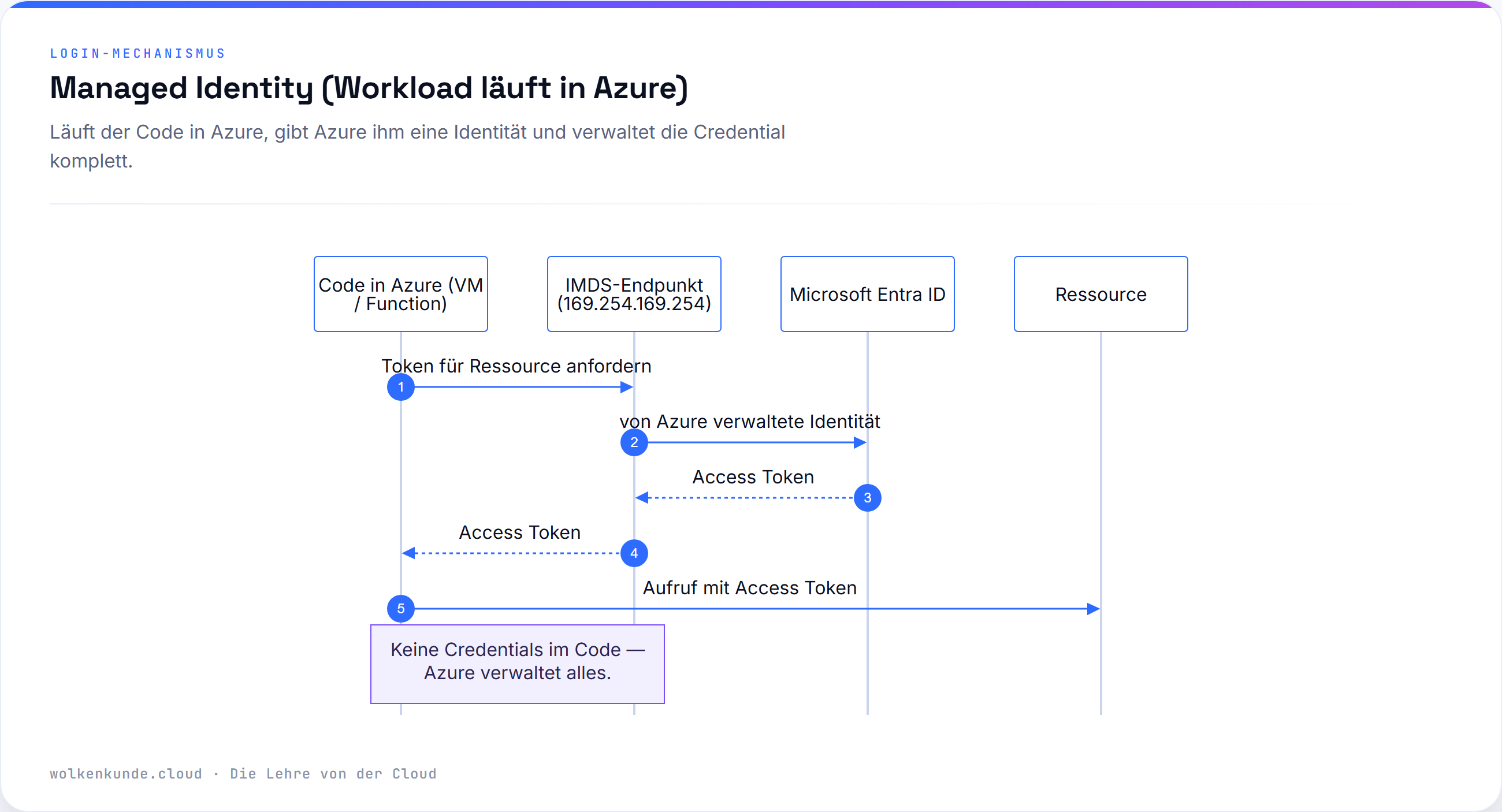
Rule of thumb: Code in Azure → Managed Identity. Code outside, but an OIDC provider available → Federated. Otherwise → Certificate. Secret only when nothing else works.
The decision matrix
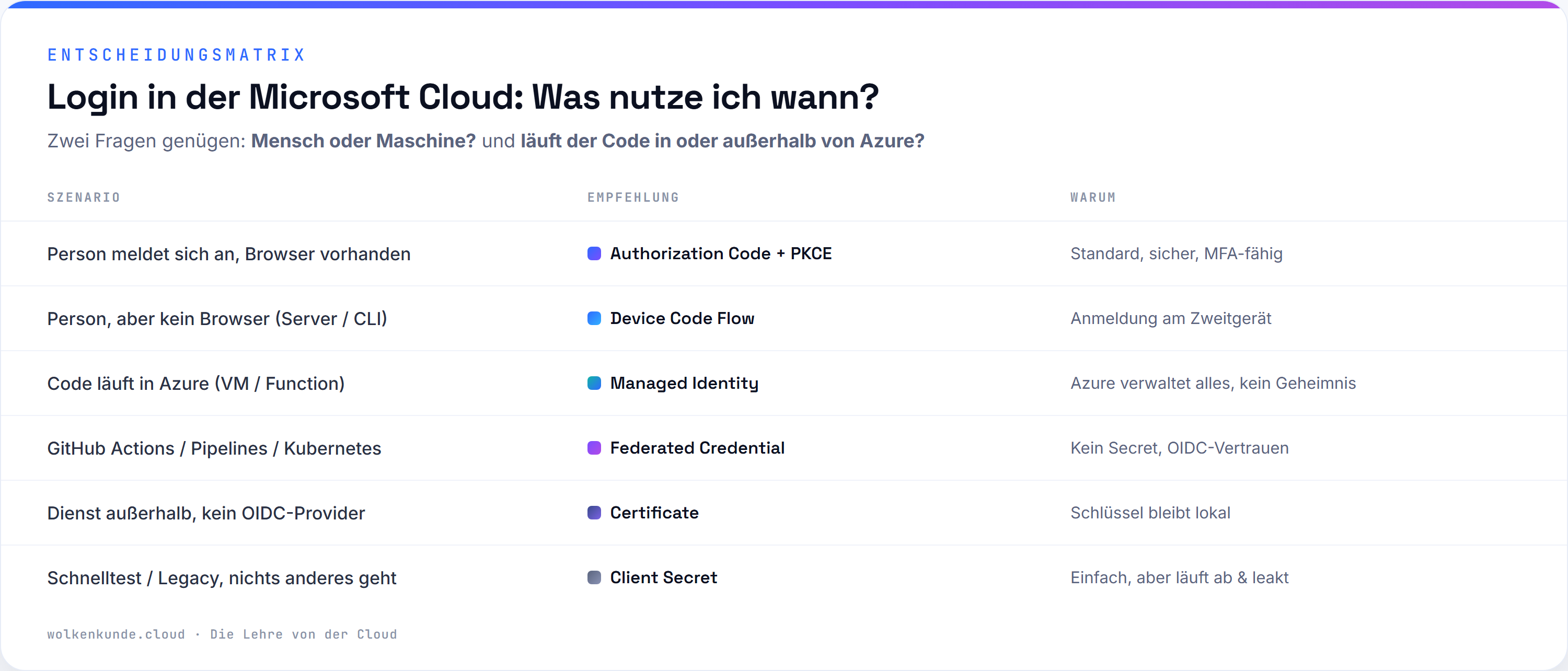
| Scenario | Recommendation | Why |
|---|---|---|
| Person signs in, browser available | Authorization Code + PKCE | Standard, secure, MFA-capable |
| Person, but no browser (server / CLI) | Device Code Flow | Sign in on a second device |
| Code runs in Azure (VM / Function / Container) | Managed Identity | Azure manages everything, no secret |
| GitHub Actions / Azure Pipelines / Kubernetes / other cloud | Federated Credential | No Secret, OIDC trust |
| Service outside, no OIDC provider | Certificate | Key stays local |
| Quick test / legacy, nothing else possible | Client Secret | Easy, but expires & leaks easily |
Limits and honest caveats
- Federated needs an OIDC provider. A simple on-prem script without an identity provider can’t federate — there, Certificate remains the best option.
- Entra’s own tokens don’t work. For the Federated flow you may not use tokens issued by Entra ID itself — only those of an external IdP.
- issuer / subject / audience match case-sensitively. The most common Federation error is a typo in the subject — for instance the wrong GitHub branch or environment name.
- Client Secret isn’t “evil”. For a quick test it’s perfectly fine. Just not something to build on in production.
Conclusion: the takeaway for beginners
Two questions, done:
- Human? → interactive (browser: Authorization Code + PKCE, otherwise Device Code).
- Machine? → in Azure: Managed Identity · outside with OIDC: Federated · otherwise: Certificate · Secret only in emergencies.
If you’re just starting out, it’s best to set up Federation or Managed Identity from the very beginning — then there’s never a secret you forget to rotate, and no Friday-evening outage due to an expired Secret.