 Platform Engineering·23 July 2026·7 min read
 Merging solution patches in Dataverse: Merge, Clone and the honest ALM path
At some point it happens: your solution carries three or four patches, each with a small change, and you finally want to merge them into a clean, new version. The question in the Maker Portal is there quickly — “Clone a Patch” or “Clone Solution”? — and the answers online contradict each other.
The short version: patches are a tool for small, quick add-ons. They are merged into a new base version via Clone Solution. And for everything that runs in a team, Microsoft itself recommends a different path. One thing at a time.
First clarify: managed or unmanaged?
That’s the one question that decides everything — answer it first.
- In the development environment you work with unmanaged solutions. This is where your customization is built, where the components lie “open”.
- In Test/Prod you install managed solutions. Managed means: encapsulated, not directly editable, cleanly uninstallable.
Patches exist in both worlds — but their purpose and their merge consequences differ. If you work unmanaged in Dev (the normal case), “merging a patch” is above all a question of the versioning of your source solution, not of the target environment.
What even is a patch?
A patch is a child solution to a parent solution. It contains only the subcomponents you change afterward — not the whole table with everything around it. It isn’t created by normal editing, but deliberately: in the Maker Portal via “Clone a Patch”, in code via the CloneAsPatchRequest message (CloneAsPatch).
Two things that otherwise catch you off guard:
- As soon as a patch exists, the parent solution is locked. You can no longer change or export it while dependent patches hang off it. From now on your work lives in the patches.
- The version must increase. A patch needs a higher version number than the base. If you import a patch with a lower version, Dataverse acknowledges it with error
80048539– “invalid patch”.
How Dataverse merges in the first place
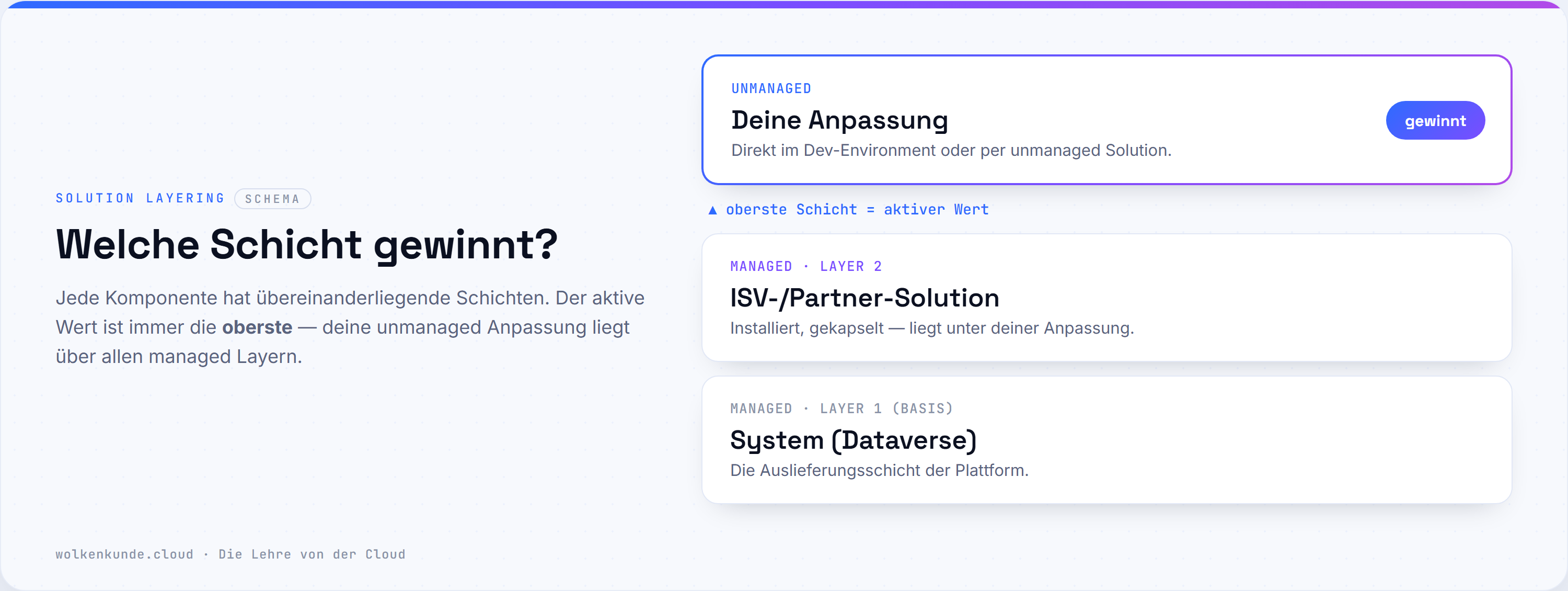
“Merging” happens constantly in Dataverse — via solution layering. Every component has layers: the managed layers of the installed solutions at the bottom, your unmanaged customization on top. For most components the rule is: the topmost layer wins (last writer wins per component). A patch lays itself as a layer over the base — which is why it overrides it in specific spots.
A few components merge differently, though, and this is exactly where the nasty surprises come from:
- Forms merge section by section. Not the whole form is replaced, only the changed sections are merged with the target form. If you insert fields into an existing section, your unmanaged layer can hide managed elements sitting above it. Rule of thumb: encapsulate your own fields in a new section/new tab, then the merge stays clean.
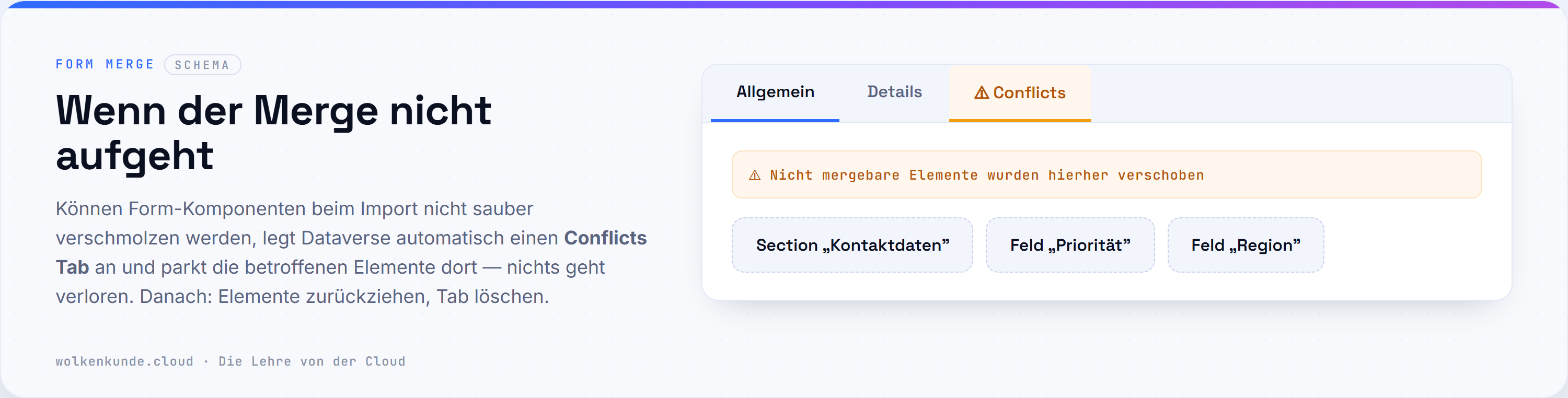
- Merge conflicts end up in the “Conflicts Tab”. When form components can’t be merged cleanly, on import Dataverse automatically adds a Conflicts Tab to the form and parks the affected elements there — nothing is lost, but you have to place them manually again and then remove the tab. Typical triggers: the same section changed in source and target, or two solutions assign the same ordinal value.
- Choice columns are additive. Options from a managed solution are added; on uninstall they disappear again. The Option Value Prefix (from the publisher prefix) prevents collisions of the option values.
- Custom security roles are replaced, not merged. That’s by design: an import overwrites the role’s privileges completely with those from the solution. Consequence: always manage a custom role from the same solution — otherwise privilege updates from another solution are lost. And: never touch predefined (out-of-the-box) roles via a custom solution — better copy the role and maintain the copy.
Merging patches — the actual merge
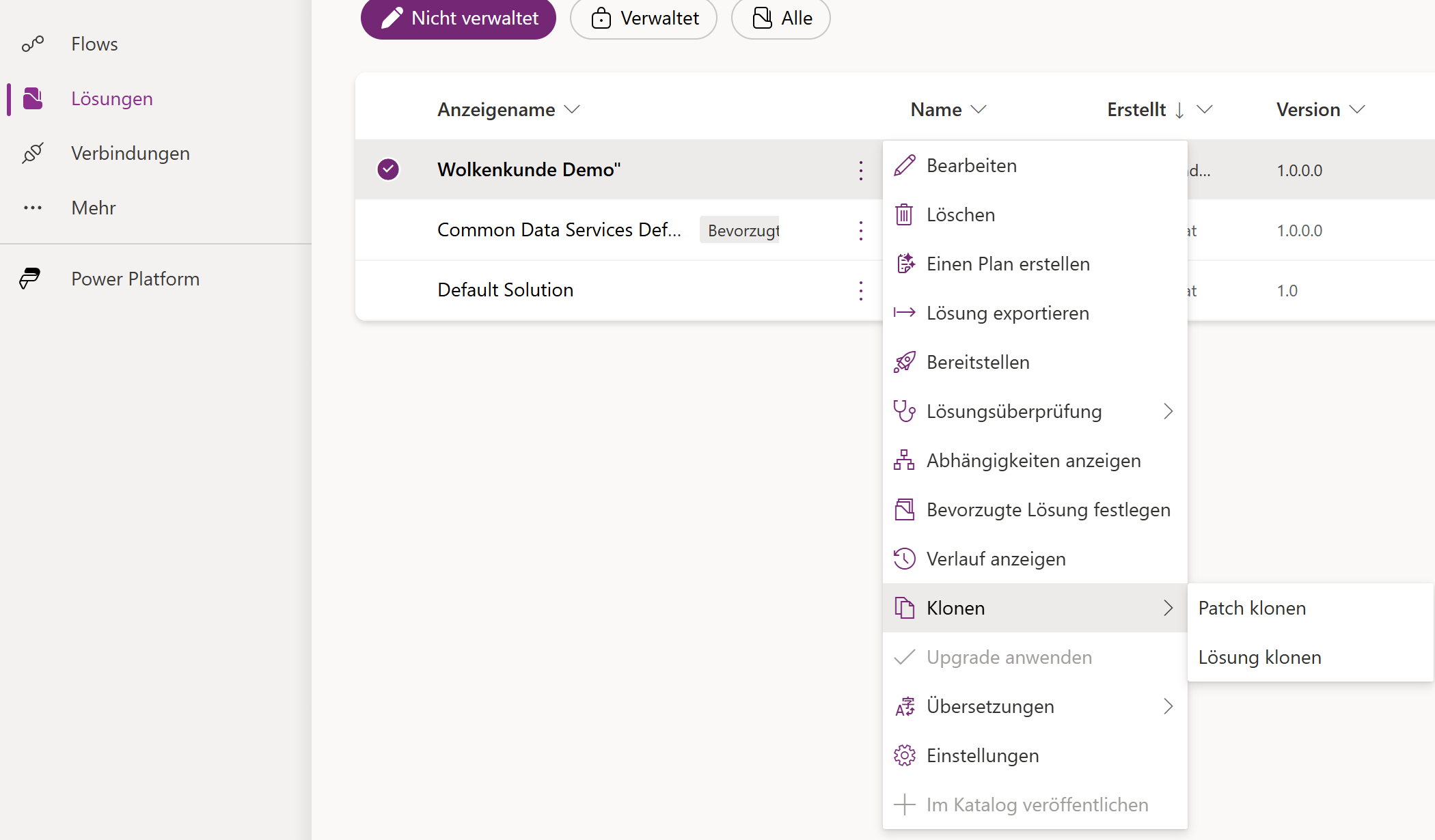
Now the core: you want to get rid of the patches and pour everything into one new base version. That’s done by Clone Solution (message CloneAsSolutionRequest / CloneAsSolution):
Clone Solution rolls the parent solution together with all its associated patches into a new base solution with a higher version — and removes the original solution and its patches in the process.
That turns “Base 1.0 + Patch 1.0.1 + Patch 1.0.2” back into one consolidated “Base 2.0”. The path in the Maker Portal:
- Back up first. Export the current parent solution (and/or each patch) as a backup before you roll anything up. Clone is not reversible.
- Open Solutions → select the parent solution → Clone Solution.
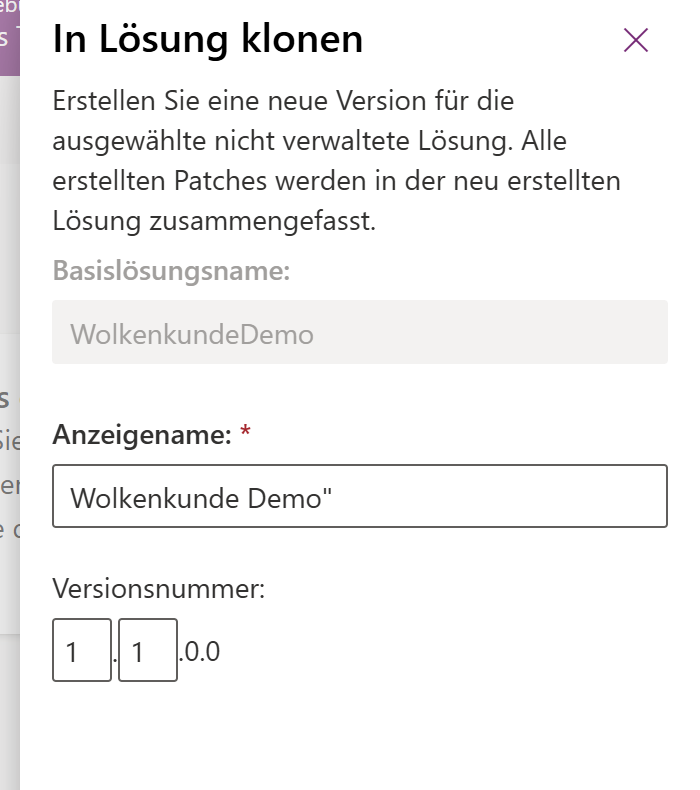
- Assign a new version number (higher than everything so far).
- Confirm — Dataverse merges base + patches, removes the old artifacts and creates the new base.
- Check the result: does the new base really contain all changes from all patches? A quick look via Solution Layers (“see solution layers”) shows you, per component, which layer wins in the end.
For the upgrade into the target system the usual applies: when importing a new managed version you choose “Upgrade” — that rolls the changes together and also cleans up removed components; “Update” or “Stage for upgrade” behave differently. For forms, by the way, the Overwrite Customizations option does not apply — form layers are always merged.
The honest catch: when patches — and when better not
This is where a quick stopgap parts ways with a robust process. Microsoft writes it clearly itself:
Using “Clone a Patch” and “Clone Solution” to update a solution is not recommended — it hinders team development and increases complexity.
The reason: as soon as the parent is locked and everything lives in patches, several people work in parallel poorly, and the history sits in Dataverse instead of in your repo. For anything beyond a single quick hotfix, the modern ALM path is the better choice:
- Unmanaged Dev solution in the development environment, components segmented.
- Source control as the truth: the solution as an unpacked project (e.g. via
pac solution clone/pac solution sync) into Git. - Managed build from the repo, deployed via pipelines (Power Platform Pipelines / Azure DevOps / GitHub) as an Upgrade to Test and Prod.
In short: patches are for the one small, urgent add-on to a version that’s already out. Versioned upgrades from source control are for everything that happens regularly and in a team.
Pitfalls that otherwise cost you time
- Parent lock: as long as patches exist, the base is locked. If you want to work freely on the base again, you first have to consolidate via Clone.
- Version numbers: patch > base, new base > everything. Otherwise
80048539. - “Changes aren’t effective after import”: don’t forget the Publish — otherwise customizations don’t take effect in the target.
- Forms: encapsulate your own elements (new section/tab), otherwise Conflicts Tab and hidden managed fields.
- Security roles: always maintain custom roles from one solution; never change predefined roles directly in custom solutions.
- Backup: export before every Clone. The roll-up removes the originals.
Conclusion: the takeaway
Two sentences that make the decision for you:
- Merging = Clone Solution. It rolls base + all patches into a new base version and clears the patches away — back up beforehand.
- For team and regular operations: no patch tinkering, but source control + versioned upgrade. Patches stay the exception for the quick one-off fix.