
 AI & Agents·27 August 2026·12 min read
 Prompt Columns in Dataverse: AI Right Inside the Table — No Code
You have a table full of free text — customer feedback, support tickets, delivery notices — and you want a category, a sentiment, or a summary per record. Until now that meant: build a flow, wire in the AI Builder prompt action, define a trigger, write the result back. Or reach for custom code. Since late July 2026, Dataverse has a dedicated data type for exactly this: Prompt Columns. GA, no longer preview.
The appeal: you create a column, store a natural-language instruction, pick one or more input columns from the same table — and Dataverse fills the column with the AI result itself. Usable everywhere the table shows up: in apps, flows, reports, agents.
But a Prompt Column does not behave like a Formula Column. Treat it as one and you will wonder why the value is still empty right after save, why editing the prompt recomputes nothing, and why your existing rows stay silent. Those are exactly the misconceptions we clear up here — and we build a practical example end to end.
1. The problem: AI enrichment without building a flow per table
The classic path to AI enrichment in Dataverse was the detour: a Power Automate flow with the AI Builder prompt action, triggered on create/update, result written back via an update action. It works, but it is infrastructure — one flow per enrichment, its own error handling, its own monitoring, its own governance.
Prompt Columns invert that: the AI instruction lives in the data model, as a property of a column. No flow, no app logic, no custom code. The result is stored persistently in the column (not recomputed on every read) and is therefore just ordinary table data: filterable, shown in views, readable in flows, handed to agents.
Typical jobs a Prompt Column takes on:
- Classification (free text → exactly one category)
- Summarization (long text → one sentence)
- Sentiment (determine the tone and justify it)
- Extraction (pull a structured value out of running text)
- Recommendation (derive the next action from the content)
The result is always text. There is no numeric or choice return type — if you need a category, you return the category word as text and process it downstream.
2. What you see first: a column like any other
In the table designer the Prompt Column looks unremarkable at first — a column in the list, a value on the form. Two things only register on a second look:
First, it is not one but three columns that get added. Alongside your actual Prompt Column, Dataverse automatically creates two companion columns:
(name)_PromptColumnStatus— the execution status as a number(name)_PromptColumnDetails— detail information about the last run
In our test table they came out as ccsm_Kategorie_PromptColumnStatus and ccsm_Kategorie_PromptColumnDetails. Worth knowing when you go looking: they do not show up under “Custom columns” — only the “All columns” view lists them. And there, the actual Prompt Column simply reads “Single line of text”: the prompt is metadata on the column, not a storage type of its own.
Those two companion columns are your window into the asynchronous processing. Without them you are in the dark about whether a result is coming, running right now, or has failed.
Second, when you create a record the value is empty for a moment. That is not a bug — it is the core of what happens technically here.
3. What actually happens technically: asynchronous, credit-driven, event-driven
The single most important sentence about Prompt Columns: evaluation is asynchronous and decoupled from the save operation. It is not a formula that computes at read time or synchronously on save. Instead the prompt runs as a background process and writes the value back when it is done.
When does the prompt run? In exactly two cases:
- A record is created.
- A referenced input column is changed.
And just as important — when does it not run? If you save a record without any referenced input column having changed, nothing happens. No execution, no credit consumption. That is deliberate: evaluation hangs off the inputs, not off the save button.
You track status via (name)_PromptColumnStatus. The status codes:
| Code | Meaning |
|---|---|
| 0 | NotStarted |
| 1 | InProgress |
| 2 | Completed |
| 2000 | Skipped — filter condition not met |
| 2001 | Skipped — no referenced input column changed |
| 3 | Failed |
The two 2000-range codes are not errors but intent: the prompt was deliberately not executed because there was nothing to evaluate. That is precisely what saves credits.
What does all this bill against? Prompt Columns consume AI Builder credits and Copilot credits. Background: AI Builder credits are being phased out (see Microsoft Learn “endofaibcredits”), with Copilot credits becoming the shared currency.
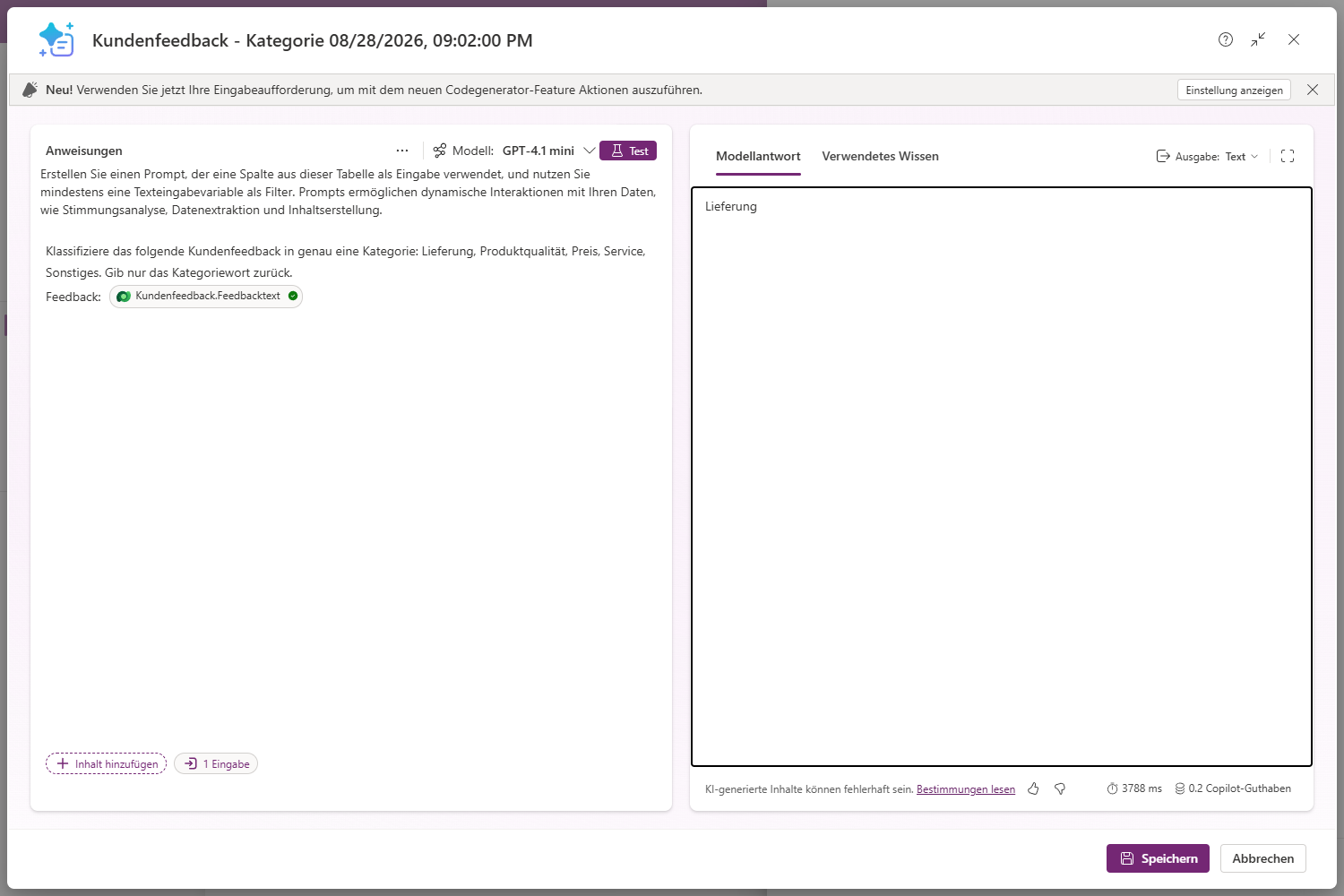
And here is a correction to a widely repeated assumption: the editor test run is not free either. The prompt editor states plainly underneath the model response what the run cost — 0.2 Copilot credits per test in our case, next to the runtime (3,788 ms on the fast run, 12,320 ms on the first). So testing is cheap, but it is billed. You see cumulative consumption in Power Automate → Automation Center → AI Builder activity under “Estimated consumption”.
You do not have to guess which model sits underneath: the prompt editor names it in the header — GPT-4.1 mini in our case — and offers a picker right there. Microsoft’s GA documentation still does not commit to a specific model, though. So plan on the basis that a model change can nudge your results.
4. The obvious wrong assumption: “This is a formula with AI”
Because a Prompt Column sits visually next to Formula Columns and “turns inputs into a value,” the fallacy is to assume it behaves like a formula. Four points where that assumption breaks:
- Not synchronous. The value is not there on save. Do not build app or flow logic that expects the prompt value immediately after saving — check the status instead.
- No on-demand. There is no “recompute now” button. It runs only on create or input change.
- No backfill. Enable a Prompt Column on a table with 10,000 existing records and they all stay empty. Only what is created or changed afterward gets evaluated.
- No recomputation when the prompt changes. Improve the instruction and already-filled values are not recomputed. The new definition takes effect only on the next trigger (new record or changed input).
Internalize these four points and you plan correctly: Prompt Columns are meant for the ongoing inflow of new/changed data, not as a batch enrichment of a legacy backlog.
5. The solid path: categorize customer feedback and score sentiment
Let us build it. Goal: a CustomerFeedback table where every new piece of free text automatically gets a category and a sentiment — with no flow.
A note on the screenshots: they come from a German-language maker portal, so the table there is called
Kundenfeedbackand the input columnFeedbacktext. The steps are identical.
Check the prerequisites
Two switches must be on, or nothing runs:
- Tenant switch for prompt column execution: on.
- Per column: “Allow prompt column execution”: on.
And one switch must be off: “Block unmanaged customizations.” If it is on, Dataverse answers execution with an error.
Create the table
In make.powerapps.com → table CustomerFeedback with:
Name(primary column, text)FeedbackText— a text column with format “Multiple lines of text” for the raw text
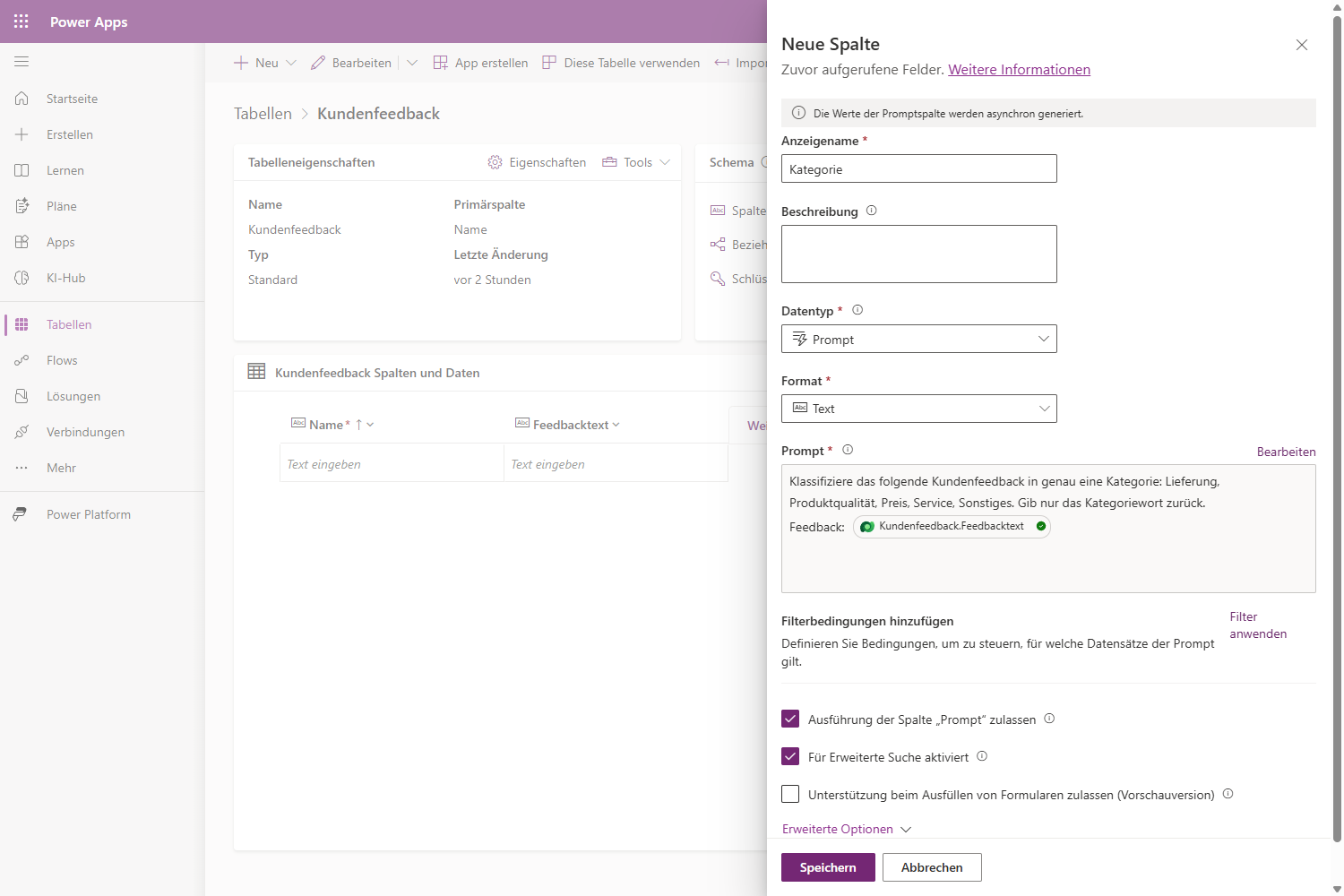
Create the “Category” Prompt Column
On the table: New → Column. Then:
- Data type: Prompt (at the very bottom of the data type menu, below “Formula”)
- Clear “Allow form fill assistance” (we do not want it here)
- + Add new prompt
- Set the input: + Add content → CustomerFeedback → FeedbackText. The editor then drops a chip
CustomerFeedback.FeedbackTextinto the text — a real reference, not a placeholder you type yourself. - Store the instruction:
Classify the following customer feedback into exactly one category:
Delivery, Product Quality, Price, Service, Other.
Return only the category word.
Feedback: [CustomerFeedback.FeedbackText]- Filter condition (optional but recommended): only run when
FeedbackTextis not empty. That saves credits and prevents runs on empty records — the skipped cases then land cleanly on status code 2000.
Create the “Sentiment” Prompt Column
Same steps, input again FeedbackText, instruction:
Determine the sentiment of the following customer feedback
(positive, neutral, or negative) and justify your assessment
in exactly one sentence.
Optional: “Summary” Prompt Column
Summarize the following customer feedback in at most 15 words.Mind the limit: at most 5 Prompt Columns per table. Three is comfortably within range here.
What is not allowed as input: formula, file, and image columns, as well as other Prompt Columns — the latter are simply ignored. Input must come from “real” columns of the same table.
Testing — right in the editor
The editor has a Test button in the top right. It pulls a real record from the table as input and shows the instruction on the left, the model response on the right. Our sample text was:
“The goods arrived four days late and the box was dented. Support never replied to two emails.”
Back came exactly one word: Delivery. In about four seconds, for 0.2 Copilot credits.
Roll out and verify live
Once the instruction is right, save the columns and build a model-driven form with Name, FeedbackText, Category, Sentiment (and the _PromptColumnStatus columns while you want to observe).
Now the live test: create a new record, enter real feedback text, save.
- Right after save:
CategoryandSentimentare empty, status is 1 (InProgress). - Shortly after, status flips to 2 (Completed) and the values appear — e.g.
Deliveryand a negative sentiment with justification.
From our own attempt — the single most useful field note: the editor test ran flawlessly for us, yet the column itself stayed empty even after 30 minutes. That is not a contradiction, it is the diagnosis: the editor test bypasses the tenant switch, actual column execution does not. So if your test answers cleanly and the column still writes nothing, it is almost always the prerequisites above (tenant or environment switch, “Block unmanaged customizations,” regional rollout) — and practically never the prompt. In that case check _PromptColumnStatus first: if it sits at 0, execution was never even queued.
Put it to use — this is where it pays off
Because the result is persistent table data, you attach whatever you like:
- Escalation flow: trigger when
Sentimentcontains “negative” → Teams message to the team, create a task. Note: trigger the flow on the change of the Prompt Column (not on record create), because the value arrives later due to the asynchronous processing. - Dashboard: view/chart grouped by
Category— at a glance where the feedback comes from. - Agent: a Copilot Studio agent on the table answers “Which category causes the most negative responses?” — provided it is cleanly grounded on that table (see Grounding Copilot agents properly).
(Microsoft’s reference example points the same way: a supply-chain manager has delivery delays automatically classified by cause, severity, and risk.)
6. Checklist before going live
- Tenant switch for prompt column execution: on
- “Allow prompt column execution” per column: on
- “Block unmanaged customizations”: off (otherwise execution error)
- Input columns are normal columns of the same table (no formula/file/image/prompt)
- Max. 5 Prompt Columns per table not exceeded
- Filter condition set where sensible (credit optimization → status 2000 instead of needless runs)
- Prompt tested in the editor — the cost per test run is shown under the model response
- Editor test works but the column stays empty? → check the tenant/environment switch and regional rollout, not the prompt
- Executing users/processes have read rights on the input columns
- Copilot credits available (otherwise Failed)
- Downstream logic (flow/app) checks the status instead of expecting the value immediately
- Aware: no backfill — legacy data stays empty
- Monitor consumption after go-live in Automation Center → AI Builder activity
7. Limits — where not to push past
- Asynchronous: the value is not there within the same save. Any logic that accesses it immediately is fragile.
- Generative AI = no determinism. The same input can produce slightly different results. For hard, reproducible rules a Prompt Column is the wrong tool.
- No on-demand, no backfill, no recomputation on a changed prompt definition. Only a new record or a changed input triggers it.
- Not audited. Execution writes no audit trail in the classic sense — for evidence obligations you have to log it yourself.
- Failure sources: missing read rights on input columns, missing Copilot credits → status 3 (Failed).
- Result is text. No choice, no number type. Any downstream typing you do yourself.
- Regional rollout was not fully complete everywhere at GA — check availability in your region/environment. Our trial offered the data type and saved it happily, but never executed the column.
- Model visible, but not guaranteed. The editor shows it (GPT-4.1 mini in our case) — still, do not rely on a specific model behavior.
Bottom line: Prompt Columns are a strong, understated tool for the ongoing AI enrichment of Dataverse data — exactly when you want to spare yourself the flow overhead and reuse the result as ordinary table data. Treat them as an asynchronous, credit-driven background process, not as a formula, and you will hit few surprises.
As of August 2026. Prompt Columns have been GA since late July 2026 (public preview since August 2025). All screenshots, runtimes, and consumption figures come from our own run in a Dataverse environment on 28 August 2026.
See also
- Grounding Copilot agents properly — why an agent is only as good as its real data sources; enriched Prompt Column data is one such source.
- What is a Power App, really? — model-driven vs. canvas, and when Dataverse is the right foundation.
- Entra Agent ID: every agent now has an identity — governance around AI in the Power Platform.
Sources: Microsoft Learn “prompt-column”; Power Platform Blog “prompt-columns-july2026”; Microsoft Learn “endofaibcredits”.