
 Platform Engineering·16 August 2026·10 min read
 Works in WinSCP, only a 405 in the flow: the two SFTP connectors in Power Automate
The credentials are correct. In WinSCP you connect to exactly this SFTP server, see the folders, upload and download files. Then you wire the same access into a Power Automate cloud flow — and testing the connection, or the first run, returns nothing but a bare 405, or a generic “Bad Gateway”. No hint what’s missing. No stack trace. Nothing.
This is one of the most frustrating cases in Power Platform integration, precisely because the obvious argument — “but it works in WinSCP!” — is the one that doesn’t help. This article explains why, in three steps: there are two SFTP connectors (one is deprecated), a 405 means something very specific for SFTP, and “it works in WinSCP” proves less than you’d think. At the end there’s a checklist to corner the case systematically.
Two connectors named almost the same
The first stumbling block sits right in the connector picker. In cloud flows there are two Microsoft-managed SFTP connectors with nearly identical names:
| Connector | What it is | Status (Aug 2026) |
|---|---|---|
| SFTP | the old connector | deprecated – “on its deprecation path” |
| SFTP – SSH | the current, recommended one | active, uses SSH.NET internally |
Microsoft is unusually blunt on the old connector’s reference page: “This connector is on its deprecation path, please use the new SFTP-SSH connector.” Every action of the old connector carries the [DEPRECATED] suffix.
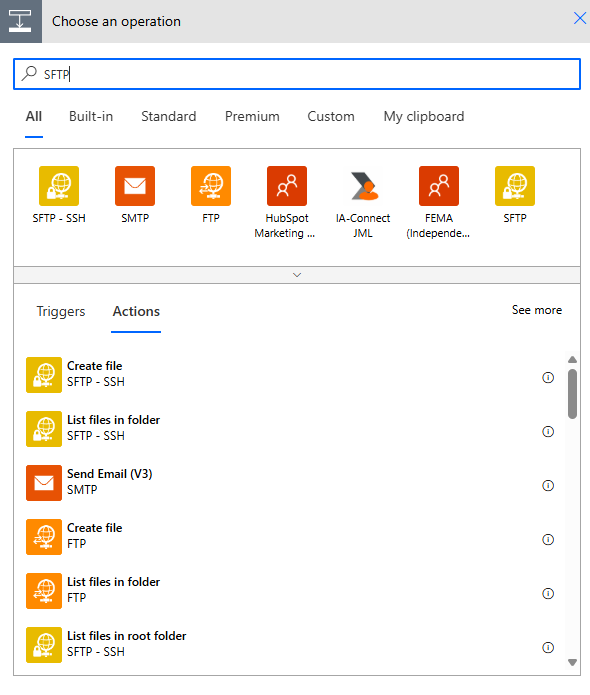
So the first check: does your flow use “SFTP – SSH” or still the old “SFTP”? Anyone inheriting from an older flow, a template, or a copied solution ends up on the wrong connector fast. And this is exactly where a connection attempt against the retired connector can already throw a 405 on the connection test, because its endpoint for new connections is no longer served cleanly. Switch to SFTP – SSH, create the connection fresh — that’s the first, cheapest fix.
What a 405 really means for SFTP
Now the uncomfortable truth most debugging sessions miss: a 405 is not officially documented for these connectors. The SFTP-SSH troubleshooting section lists 401, 404 and 504 — no 405. The documented error patterns are instead “Bad Gateway”, “Key exchange negotiation failed”, “Server HMAC algorithm not found” or “Server response does not contain SSH protocol identification”.
Why does that matter? Because 405 Method Not Allowed is an HTTP status code. Real SSH/SFTP on port 22 speaks no HTTP and never returns a 405. So if you see a 405, that’s a strong signal no real SFTP connection is being established at all — something HTTP-speaking is answering. The three most plausible causes:
- Wrong endpoint / wrong port. The connector talks to an HTTP reverse proxy, a WAF or a load balancer in front of the actual SFTP server (say port 443/80 instead of 22), and that appliance answers the incoming method with “405 Method Not Allowed”. WinSCP shows exactly this picture when you accidentally point it at an HTTP endpoint. → Check host and port: really SFTP over SSH on 22, not FTPS/HTTPS?
- Still the old, deprecated connector (see above) — the connection-management call runs into a dead end.
- Confusion with a custom connector. If you rebuild SFTP via a hand-built HTTP custom connector, you get a 405 as soon as an action’s HTTP method is defined wrong (e.g.
DELETEinstead ofPUT). Doesn’t affect the managed connector, but shows up in searches as “SFTP 405”.
In short: the 405 steers you away from the SSH layer and toward the question “Are you even talking to the right thing on the right port?”
Why it works in WinSCP but not in the flow
Assume host and port are right and you’re on SFTP – SSH — and the connection still fails (then usually with “Bad Gateway”, “Key exchange negotiation failed” or “Server HMAC algorithm not found”). Now the real core problem kicks in, and it also explains why WinSCP leads you astray.
The connector is limited to SSH.NET’s algorithms — WinSCP can do far more. SFTP-SSH uses the open-source library SSH.NET internally. Its supported methods are listed in the official docs — and that list is narrower than what WinSCP brings along. Especially notable:
- Key exchange (KEX) and cipher: a fixed, finite list (e.g.
curve25519-sha256,ecdh-sha2-nistp256/384/521, variousdiffie-hellman-group…,aes*-ctr/-cbc). If your server only offers KEX methods that aren’t on it, negotiation fails — whereas WinSCP generously negotiates a common denominator. - MAC/HMAC: SFTP-SSH’s official algorithm list contains no MAC algorithms at all. That’s exactly what produces the documented “Server HMAC algorithm not found” when the server only offers MACs the library doesn’t know.
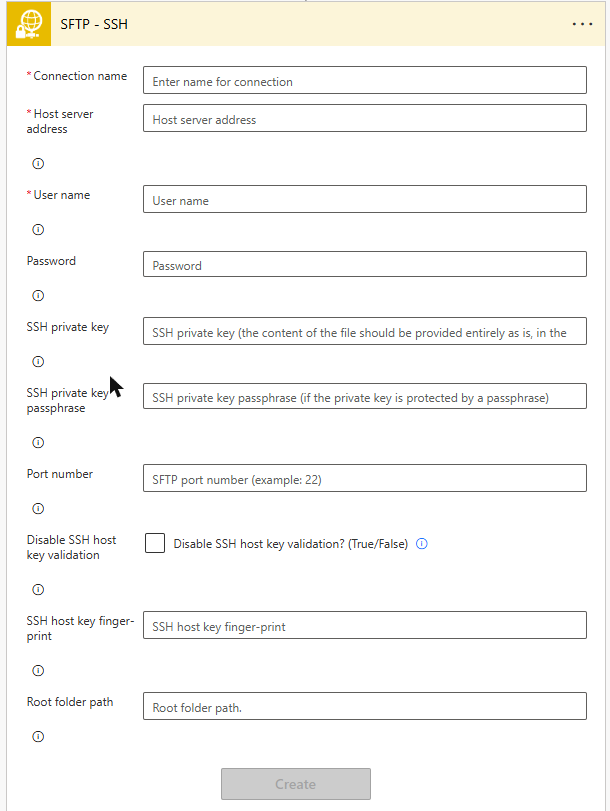
- Key format: SFTP-SSH wants RSA or DSA keys in OpenSSH or ssh.com format. A PuTTY
.ppk— which WinSCP eats without complaint — must be converted to OpenSSH/.pemfirst. Wrong format → “Permission denied (publickey)”. - Host key fingerprint: SFTP-SSH accepts the fingerprint only as MD5 (47 characters, 16 hex pairs with colons). WinSCP shows you a SHA-256 fingerprint by default — paste that in and it gets rejected.
The real lesson:
“It works in WinSCP” only proves the server is reachable and the credentials are correct. It does not prove the connector supports the algorithms the server offers (KEX/cipher/MAC) or your key and fingerprint formats. WinSCP is the generous, broadly compatible client — SSH.NET is the limiting factor.
The obvious but wrong reflexes
Reflex 1: “The credentials must be wrong.” No — the fact that they work in WinSCP practically rules that out. The problem almost always sits one layer deeper (connector variant, port/proxy, algorithms, key/fingerprint format), not with user/password.
Reflex 2: “I’ll just grab the first SFTP connector.” That’s the two-names trap. The first one is often the deprecated “SFTP”. Always deliberately pick SFTP – SSH.
Reflex 3: “I’ll copy the WinSCP fingerprint in.” WinSCP shows SHA-256, the connector wants MD5 — the copy-paste reflex produces exactly the next error. Get the fingerprint as MD5 (see below).
Hands-on: narrowing it down systematically
Instead of guessing, work the following order — it goes from “cheap and common” to “rare and expensive”:
- Check the connector identity. Does the flow say “SFTP – SSH” or “SFTP
[DEPRECATED]”? If old: switch, create the connection fresh. - Host, port, protocol. Really SSH/SFTP on port 22? A 405 points strongly at an HTTP front end/proxy or a wrong port (443/FTPS).
- Create the connection fresh and copy the key, don’t retype it (docs warning: manual editing corrupts keys).
.ppk,ed25519orecdsa? Convert to OpenSSH/.pem(RSA). - Get the fingerprint as MD5. In WinSCP under Session → Server/Protocol Information; or from the public key:
To isolate purely, temporarily set “Disable SSH host key validation” = true — if it works then, the fingerprint was the problem. (Re-enable in production.)ssh-keygen -l -E md5 -f id_rsa.pub - Set the root folder path explicitly — don’t rely on
/. If rights are missing there, you get “Permission denied” on the test. - Compare algorithms. Which KEX/cipher/MAC does the server offer (server config or WinSCP → Server/Protocol Information)? Hold it against the SFTP-SSH list. If the server only offers methods SSH.NET doesn’t know → enable a compatible method server-side or switch to the fallback (see below).
- Firewall/IP allow-listing. If a firewall sits in front, allow the managed connector’s outbound IPs for the region — not “your” logic app/flow IP, but the connector IPs. And: if the server caps connections per source IP, the connector (multiple parallel connections) can hit the limit.
- Gateway only when needed. If the SFTP server is only reachable internally, the managed connector needs an on-premises data gateway. If the server is public, don’t pick a gateway — otherwise you build yourself an extra source of errors.
Prerequisites & pitfalls of SFTP – SSH
A few doc details worth knowing before going to production:
- File sizes / chunking. Actions with chunking (e.g. Create file, Get file content) handle up to 1 GB; without chunking it’s capped at 50 MB. Triggers can’t chunk: files > 50 MB are skipped, “include content” triggers only fetch ≤ 15 MB. Pattern for large files: trigger “properties only” + a separate “Get file content” action.
- Connection caching. SFTP-SSH caches a connection for up to one hour — handy for throughput, but a factor when something changes server-side.
Not every SFTP server is supported
Many people miss this: the SFTP-SSH docs explicitly list servers that are not supported — regardless of whether your credentials are correct. If one of them is on the other end, frustration is guaranteed, and no fingerprint or key trick helps. Named among others:
- AWS Transfer (AWS SFTP)
- Globalscape
- IBM DataPower
- MessageWay
- OpenText Secure MFT / GXS
- Akamai NetStorage
- FileMage
- VShell
- “SFTP for Azure Blob Storage”
So it’s worth checking this list before you start debugging: if the target server is on it, the managed connector won’t get you there — go straight to the fallback below.
The fallback when the algorithms just won’t match
If step 6 shows the server and SSH.NET can’t find a common denominator (typical for old or very strictly hardened servers) — or the server is on the list above — there’s an officially recommended way out: a Standard Logic App with the built-in SFTP connector instead of the managed connector in Power Automate. The built-in connector brings a broader cipher suite, runs over VNet integration (no gateway needed) and gives finer control over scale-out. Microsoft itself names this path for cipher incompatibility.
That’s not admitting defeat, it’s the right tool choice: Power Automate managed connector for the normal case, Standard Logic App built-in for the hard ones.
Limits and honesty
- The 405 itself stays undocumented. Everything above about the 405 is reasoned inference (HTTP status → no real SSH), not a Microsoft-documented error code. Treat it as a signpost toward network/port/connector variant, not as an SSH error.
- No fixed shutdown date for the old connector. “Deprecation path” means frozen, no new features, eventually no support — but Microsoft names no concrete end date. Don’t rely on it “running for a long time yet”.
- Community vs. official. Many 405 reports come from forums (Microsoft Q&A, Power Users, the WinSCP forum). Valuable as hints, not as assurances — the solid facts (algorithms, MD5 fingerprint, chunking limits) are on the Learn pages linked below.
Bottom line: “works in WinSCP, only a 405 in the flow” is rarely a credentials problem and almost always one of connector variant, port/proxy, or algorithm/format compatibility. Check in that order, get the fingerprint as MD5, convert the key to the right format — and if the server and SSH.NET simply won’t agree, switch to the Standard Logic App with built-in SFTP. Then the 405 is a riddle once, and a checklist thereafter.
State: August 2026. Microsoft changes connector capabilities and deprecation statuses regularly — when in doubt, check the linked Learn page. The 405 is not an officially documented error code of these connectors, but interpreted here as an HTTP status code.
Official sources
- SFTP – SSH connector (reference, algorithms, limits) — supported KEX/cipher/host-key methods, MD5 fingerprint, chunking, unsupported servers.
- SFTP connector (the deprecated one) — “on its deprecation path”.
- SSH.NET (the underlying library) — what the connector can do under the hood.
- Outbound IP addresses of the connectors — for firewall allow-listing.
- Set up the on-premises data gateway — when the server is only reachable internally.