
 AI & Agents·05 September 2026·17 min read
 UI components in chat: when the agent sends a table you can actually use
The flow Rechnung freigeben (“approve invoice”) runs hourly, and this morning one of the runs failed. You ask your agent about the last runs and get a clean list — and still have to open the portal, find the flow, find the run and restart it. The agent has not taken the work off your hands, it has moved it.
That the agent knows about those runs at all comes down to the Model Context Protocol (MCP): an open socket through which an agent reaches other systems. An MCP server offers tools, the agent calls them and gets data back. What comes back has always been text or JSON, which the model then turns into an answer.
MCP Apps extend exactly that way back: a tool may ship the interface along with its data. What lands in the chat is not a list but a table with a button — and the click goes straight back to the server, without a detour through the model. In the Microsoft world this is currently seeping in: in VS Code and Microsoft 365 Copilot it has arrived, in Power Apps it is public preview, in Copilot Studio it is not there yet.
Four things are in this article:
- How it works — the two MCP building blocks behind such a component.
- Two working examples — a small MCP server you start yourself in a few minutes: first a table of flow runs, then an order flow over three steps. At the end the same server runs inside the real Copilot Chat in VS Code.
- The Power Apps route — there the platform generates the MCP server for you instead of you running one.
- What is missing — the gaps Microsoft documents openly.
What you see first
The usual setup: an MCP server hangs off the agent, a tool returns clean JSON, the model turns that into an answer. What ends up in the chat looks like this:
2026-09-05T06:12:04Z | Rechnung freigeben | Failed | BadRequest: 'approverEmail' is required
2026-09-05T05:12:03Z | Rechnung freigeben | Succeeded
2026-09-05T04:12:01Z | Rechnung freigeben | Running
Correct, complete — and dead. None of it is clickable. The agent can tell you that a run failed; it cannot offer a button to restart it.
What actually happens technically
A UI component consists of two MCP primitives tied together:
- A resource with the
ui://…scheme. It returns a self-contained HTML file — the component. - A tool whose
_meta.ui.resourceUrifield points at exactly that resource.
When the host calls the tool, it fetches the HTML resource, renders it in a
sandboxed iframe and pushes the tool result into it. Inside the component the
counterpart runs: the App class from @modelcontextprotocol/ext-apps. It
registers with the host through app.connect(), receives the data through
app.ontoolresult — and can call another tool on the server itself through
app.callServerTool().
That is the actual point: communication runs in both directions. The user clicks in the component, the component calls the server, the server answers, the component redraws — without anyone leaving the chat, and without the model having to guess again in between.
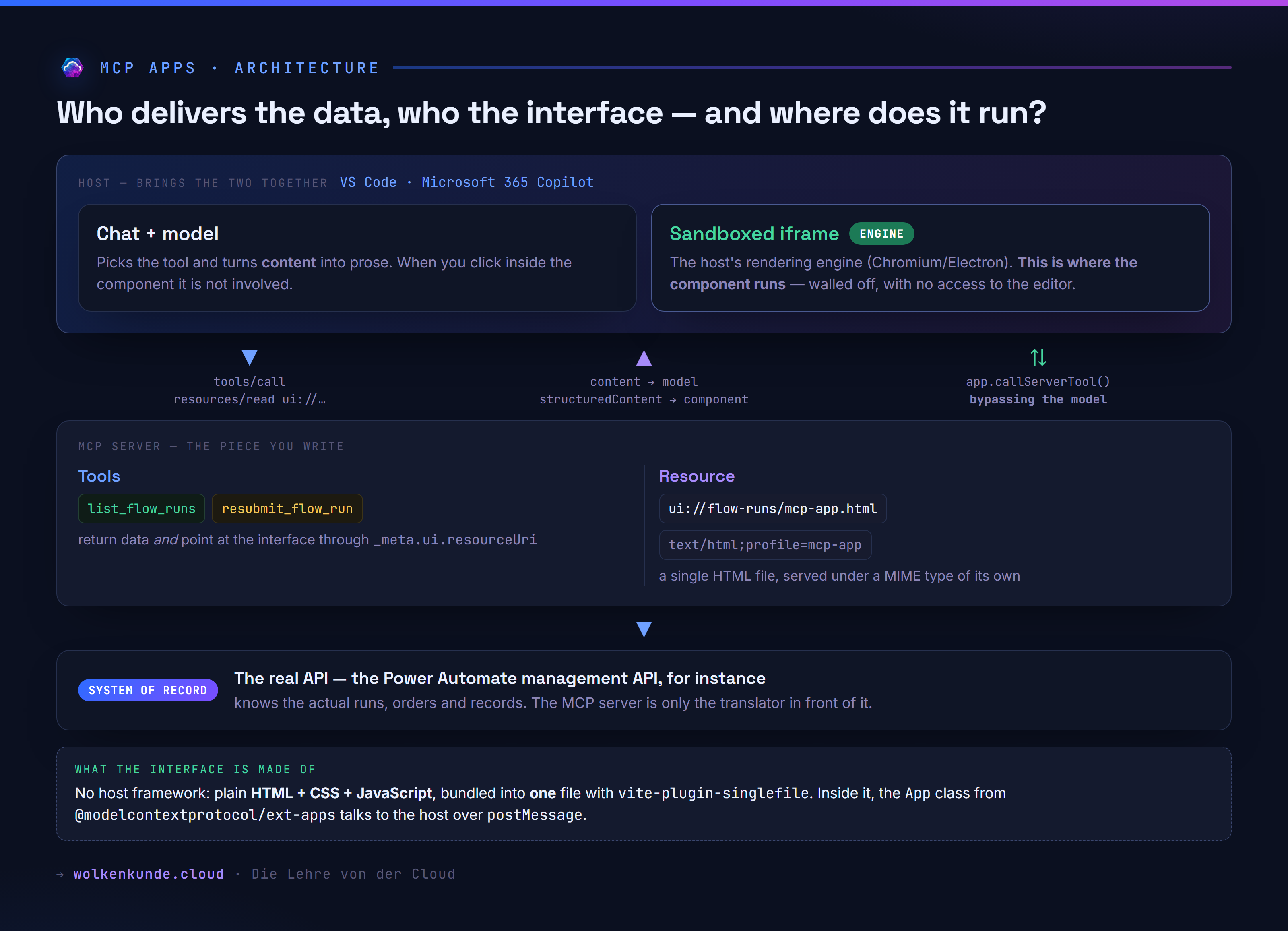
Three responsibilities worth keeping apart: the real API behind it all knows
the data. The MCP server is the translator in front of it — it offers the
tools and ships the interface as a resource along with them. And the engine
belongs to the host: the component runs in its sandboxed iframe, technically
just HTML with JavaScript talking to the host over postMessage.
The split in the tool result matters:
content— the text fallback. It stays mandatory, because not every surface renders components.structuredContent— the data for the component. It arrives in the widget asresult.structuredContent, not asresult.data.
The obvious shortcut that isn’t one
Two reflexes lead astray here.
“That’s what Adaptive Cards are for.” Adaptive Cards are the older, proven route for structured answers in Copilot Studio, and for forms and follow-up questions they remain the right choice. But the maker defines the card up front, and its behaviour ends with the actions it declares. An MCP component is a real web application inside the chat that decides at runtime what it loads next.
“Then I’ll click it together in Copilot Studio.” That does not work today. Copilot Studio can connect MCP servers and call their tools — the inline rendered widget is not part of that yet. The Microsoft 365 roadmap entry 570433 (“Deliver rich interactive app experiences in Copilot Studio agents”) lists preview for October 2026 and general availability for November 2026. Anyone who wants to try something today does it elsewhere:
| Surface | Status |
|---|---|
| VS Code, GitHub Copilot Chat | available; MCP Apps since January 2026, setting chat.mcp.apps.enabled (default: on, marked experimental) |
| Microsoft 365 Copilot Chat (declarative agents) | available; generally available since March 2026 according to the docs |
| Power Apps, model-driven app with App MCP | public preview |
| Copilot Studio agents | announced: preview 10/2026, GA 11/2026 |
Let’s build it
The fastest way to get a feel for it is a small MCP server you start yourself — not the Power Apps route. That one needs a Microsoft 365 Copilot licence and a model-driven app (more on it further down), while the mechanism stays the same. Locally you see it in five minutes and without a tenant.
Three parts play together:
- The MCP server — the piece you write. It offers the tool
list_flow_runsand the component that goes with it (the second example further down lives in the same server). It stands in for whatever really knows about flow runs, the Power Automate management API for instance; the runs themselves are demo data inside the server, so you do not need a tenant. - The component — a single HTML file: the table that appears in the chat, with a button Erneut ausführen (“run again”) on failed runs.
- The host — the place that brings both together and displays the component. In production that is VS Code or Microsoft 365 Copilot; to try it out we start with the reference host from the MCP repository.
Setting up the project
mkdir flow-runs-mcp-app && cd flow-runs-mcp-app
npm install @modelcontextprotocol/ext-apps @modelcontextprotocol/sdk
npm install -D typescript vite vite-plugin-singlefile express cors @types/express @types/cors tsx
I used @modelcontextprotocol/ext-apps 1.7.5 and @modelcontextprotocol/sdk
1.30.0 on Node 25. vite-plugin-singlefile bundles the component together with
its script and CSS into one HTML file — that saves you the work on the
Content Security Policy of the iframe the component later runs in.
The server
// server.ts
import { McpServer } from "@modelcontextprotocol/sdk/server/mcp.js";
import { StreamableHTTPServerTransport } from "@modelcontextprotocol/sdk/server/streamableHttp.js";
import {
  registerAppTool,
  registerAppResource,
  RESOURCE_MIME_TYPE,
} from "@modelcontextprotocol/ext-apps/server";
import { z } from "zod";
import express from "express";
import cors from "cors";
import fs from "node:fs/promises";
import path from "node:path";

const server = new McpServer({ name: "Flow Runs", version: "1.0.0" });

// The ui:// scheme marks the resource as a UI component.
const resourceUri = "ui://flow-runs/mcp-app.html";

type Run = { id: string; flow: string; status: string; started: string; error?: string };
const runs: Run[] = [
  { id: "08584...231", flow: "Rechnung freigeben", status: "Failed",    started: "2026-09-05T06:12:04Z", error: "BadRequest: 'approverEmail' is required" },
  { id: "08584...230", flow: "Rechnung freigeben", status: "Succeeded", started: "2026-09-05T05:12:03Z" },
  { id: "08584...229", flow: "Rechnung freigeben", status: "Running",   started: "2026-09-05T04:12:01Z" },
];

registerAppTool(
  server,
  "list_flow_runs",
  {
    title: "Flow-Läufe anzeigen",
    description: "Zeigt die letzten Läufe eines Cloud Flow als interaktive Tabelle.",
    inputSchema: {},
    annotations: { readOnlyHint: true },
    _meta: { ui: { resourceUri } },
  },
  async () => ({
    structuredContent: { runs },
    content: [{
      type: "text",
      text: runs.map((r) => `${r.started} | ${r.flow} | ${r.status}`).join("\n"),
    }],
  }),
);

registerAppTool(
  server,
  "resubmit_flow_run",
  {
    title: "Lauf erneut ausführen",
    description: "Startet einen fehlgeschlagenen Lauf neu.",
    inputSchema: { runId: z.string() },
    _meta: { ui: { resourceUri } },
  },
  async ({ runId }) => {
    const run = runs.find((r) => r.id === runId);
    if (run) { run.status = "Running"; delete run.error; }
    return { structuredContent: { runs }, content: [{ type: "text", text: `Lauf ${runId} neu gestartet.` }] };
  },
);

registerAppResource(
  server,
  resourceUri,
  resourceUri,
  { mimeType: RESOURCE_MIME_TYPE },
  async () => ({
    contents: [{
      uri: resourceUri,
      mimeType: RESOURCE_MIME_TYPE,
      text: await fs.readFile(path.join(import.meta.dirname, "dist", "mcp-app.html"), "utf-8"),
    }],
  }),
);

const app = express();
app.use(cors());
app.use(express.json());
app.post("/mcp", async (req, res) => {
  const transport = new StreamableHTTPServerTransport({ sessionIdGenerator: undefined, enableJsonResponse: true });
  res.on("close", () => transport.close());
  await server.connect(transport);
  await transport.handleRequest(req, res, req.body);
});
app.listen(3001, () => console.log("MCP server on http://localhost:3001/mcp"));
The component
The interesting part is the handful of lines that attach the component to the
host — register the handlers first, then connect():
// src/mcp-app.ts
import { App } from "@modelcontextprotocol/ext-apps";

const app = new App({ name: "Flow Runs UI", version: "1.0.0" });

function render(runs: Run[]) {
  // … draw the table …
  // Button only on failed runs:
  b.onclick = async () => {
    const res = await app.callServerTool({
      name: "resubmit_flow_run",
      arguments: { runId: r.id },
    });
    render((res.structuredContent as { runs: Run[] }).runs);
    app.sendSizeChanged({ height: document.body.scrollHeight });
  };
}

app.ontoolresult = (result) =>
  render((result.structuredContent as { runs: Run[] })?.runs ?? []);
app.connect();
app.sendSizeChanged() is not a detail for later: the host does not know how
tall the content is. Without that call the component sits in a frame that is too
small, with a scrollbar.
Build it, start it, look inside
npx vite build     # → dist/mcp-app.html
npx tsx server.ts  # → http://localhost:3001/mcp
Whether the wiring is correct shows in tools/list alone, without any host:
curl -s -X POST http://localhost:3001/mcp \
  -H "Content-Type: application/json" \
  -H "Accept: application/json, text/event-stream" \
-d '{"jsonrpc":"2.0","id":1,"method":"tools/list"}'{"name":"list_flow_runs","title":"Flow-Läufe anzeigen",
"annotations":{"readOnlyHint":true},
"_meta":{"ui":{"resourceUri":"ui://flow-runs/mcp-app.html"},
"ui/resourceUri":"ui://flow-runs/mcp-app.html"}}Two things are worth noting here. First, the SDK writes the association out
twice — nested as ui.resourceUri and flat as ui/resourceUri, so that older
hosts find it too. Second, the component shows up in resources/list with a
MIME type of its own:
{"uri":"ui://flow-runs/mcp-app.html",
 "mimeType":"text/html;profile=mcp-app"}
The tool call then returns both channels side by side — fallback text and data:
{"content":[{"type":"text","text":"2026-09-05T06:12:04Z | Rechnung freigeben | Failed | …"}],
 "structuredContent":{"runs":[
   {"id":"08584...231","flow":"Rechnung freigeben","status":"Failed",
    "started":"2026-09-05T06:12:04Z","error":"BadRequest: 'approverEmail' is required"}]}}
Looking at it in a host
The reference host from the ext-apps repository is enough to see it. It is not
a copy of Copilot, but it speaks the same protocol:
git clone https://github.com/modelcontextprotocol/ext-apps.git
cd ext-apps && npm install && npm run build
cd examples/basic-host && npm install
SERVERS='["http://localhost:3001/mcp"]' npm start   # → http://localhost:8080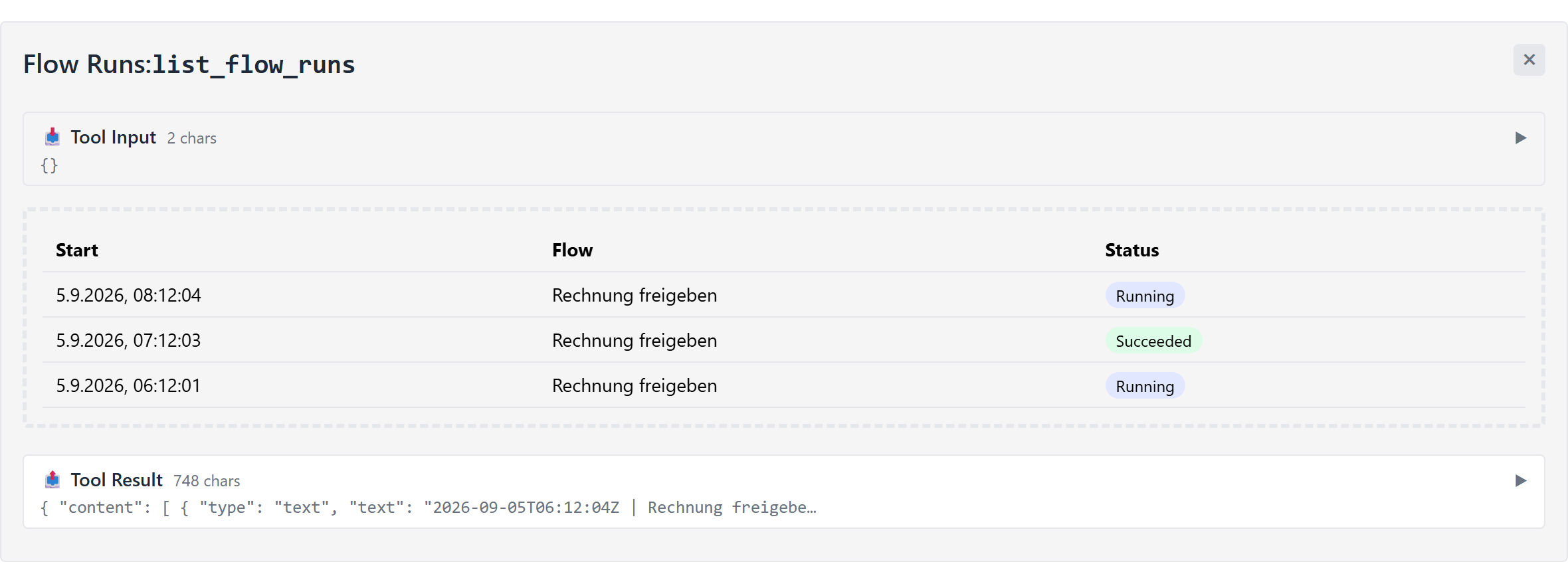
The input at the top, the raw result at the bottom — and between them the
component, which turns that same result into a table with status markers and a
button. A click on Erneut ausführen calls resubmit_flow_run on the server,
and the table redraws with the new status:
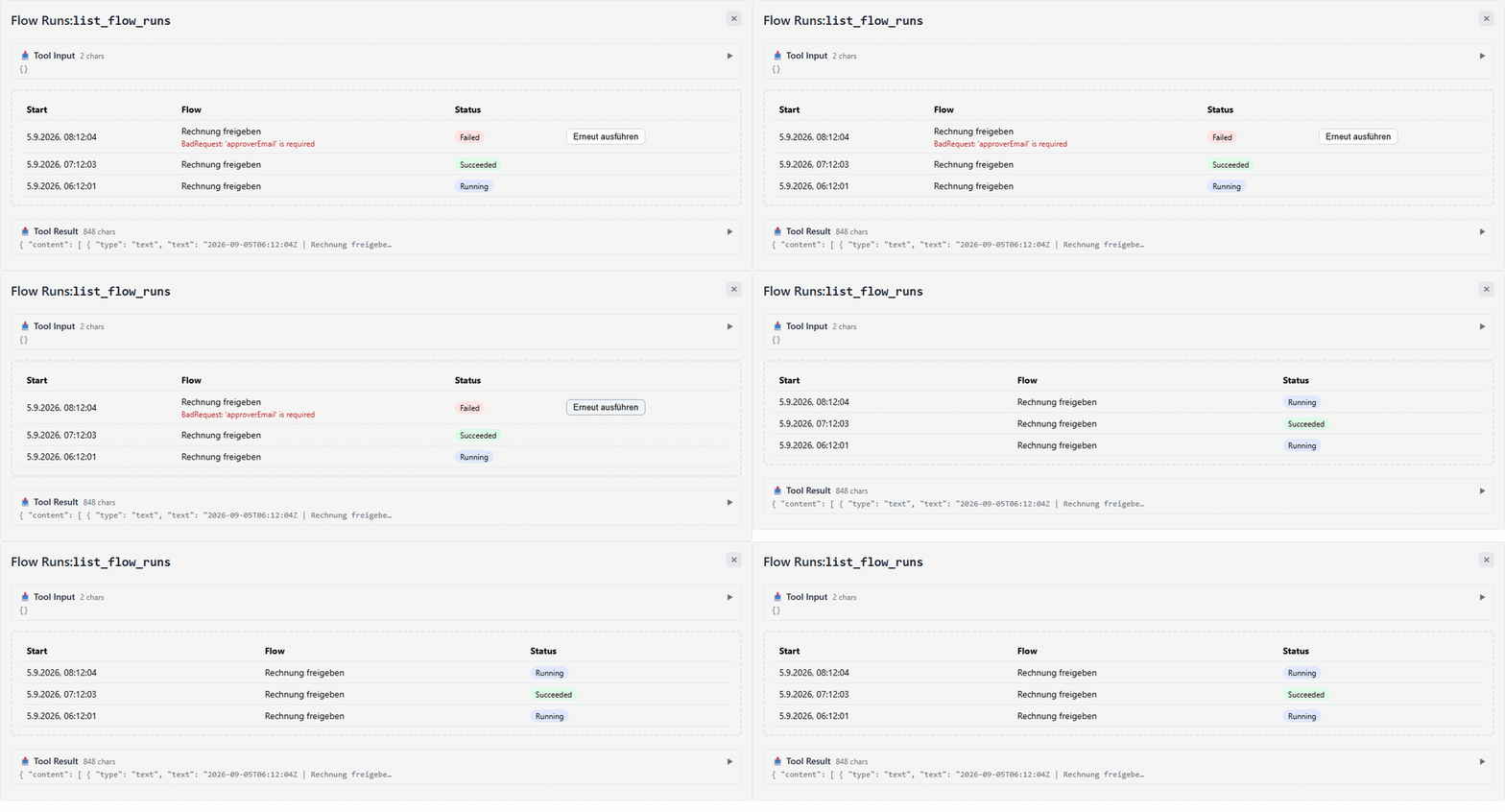
There is no model call between the click and the redrawn table. The click goes straight to the server.
A second flow: creating something, not just showing it
The table shows the principle, but it stays a single click. It gets more
interesting when several steps hang together and something exists at the end.
The second tool in the example server, order_office_supplies, opens an order
for office supplies: pick quantities, assign a cost centre, review, order for
real — and then ask for the status.
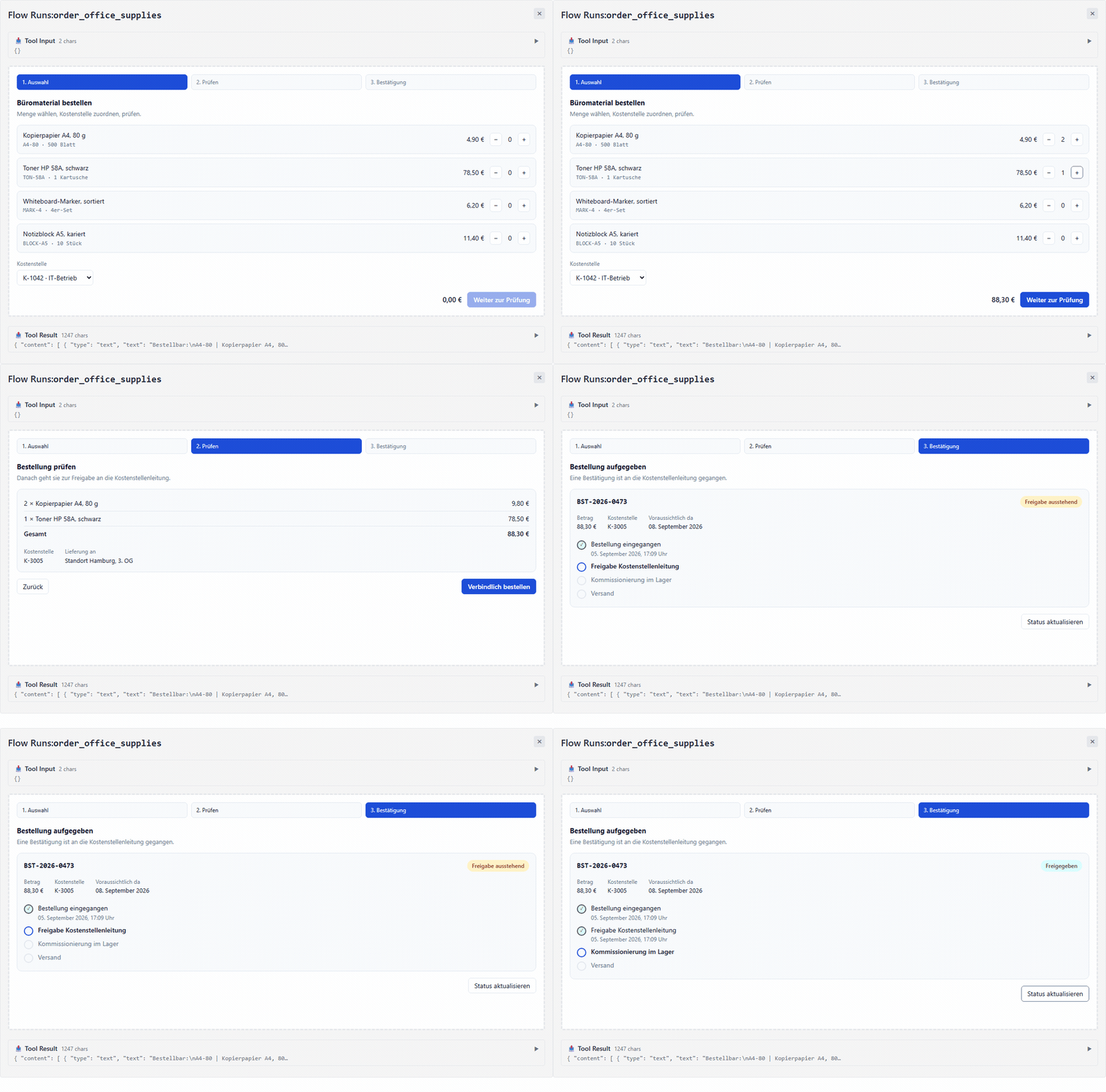
Three steps, two calls back to the server: place_order creates the order and
returns order number, amount and approval trail, order_status fetches the
current state. Both run from inside the component, with no model in between.
Three things stand out.
The component keeps its own state. Selection, quantities and cost centre live in the widget — not in the server and not in the model. Only when you order does all of it go to the tool in one go, against a schema the server validates:
inputSchema: {
  items: z.array(z.object({ sku: z.string(), qty: z.number().int().positive() })).min(1),
  costCenter: z.string(),
},
You secure writing actions yourself. place_order creates something, and
the host does not help: destructiveHint and idempotentHint are ignored, and
there is a confirmation before sending only if the component asks for one. Hence
the intermediate review step with its own order for real button, rather
than ordering straight from the list.
Pin the height. The three steps have different heights. Without a minimum
height in the component, the conversation jumps on every step — whatever sits
below it slides up and down. A min-height on the body costs a little
whitespace and keeps the flow calm.
The same thing in a real Copilot Chat
The reference host shows the protocol, but not everyday use. For that there is
VS Code: since January 2026 its Copilot Chat renders MCP Apps inline in the
conversation — according to the VS Code team, as the first major editor. The
setting is called chat.mcp.apps.enabled, defaults to true and is marked
experimental; so there is nothing to switch on.
To get that same demo server in there, one file in the project is enough:
// .vscode/mcp.json
{
  "servers": {
    "flow-runs-demo": { "type": "http", "url": "http://localhost:3001/mcp" }
  }
}
After that the tool is available in the chat — and the answer to “Zeig mir die letzten Flow-Läufe” (“show me the last flow runs”) is not a list:
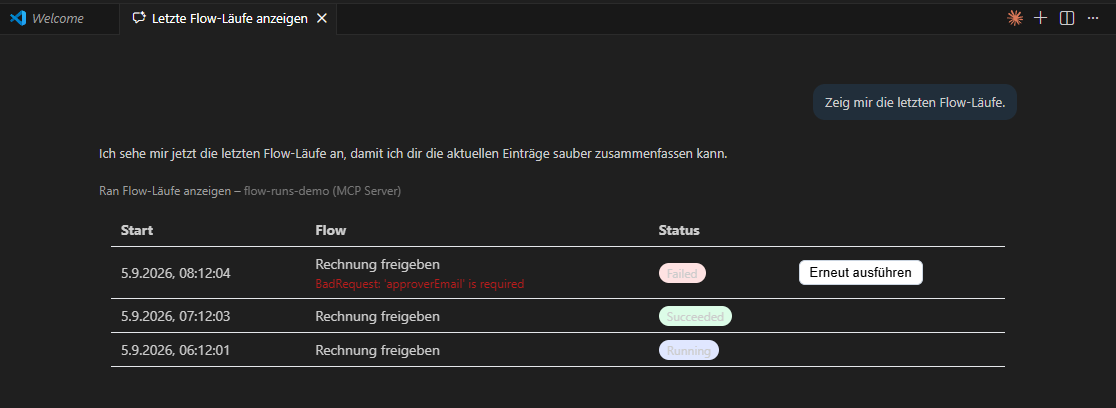
The line above names the tool and the server, and below it sits the component — in the place where prose would otherwise be. The button behaves exactly as it does in the reference host: the click goes straight to the server, the model is not asked again.
For corporate tenants there is a caveat attached. With Copilot Business and
Copilot Enterprise the organization policy “MCP servers in Copilot” has
to be enabled — it is off by default. Since August 2026 allowlists in enterprise
managed settings come on top (allowedMcpServers, deniedMcpServers), enforced
in VS Code among other clients. With Copilot Free, Pro, Pro+ and Max neither
applies.
And in the Power Platform?
For model-driven apps there is a route that does not require you to run an MCP
server yourself — Power Apps generates it. The sequence according to the docs
(public preview, make.preview.powerapps.com):
- Open the app, choose App MCP on the left, then Set up MCP — once.
- Save and publish the app.
- Under Tools → Create custom tool, enter a name, a description and the instruction for the data output. The output type has to be JSON, otherwise there is nothing a component could render.
- Run Test, then paste the component’s HTML in the next step and save.
- Download app package and deploy the package in Teams or through the Microsoft 365 admin center.
The prerequisites are a Microsoft 365 Copilot licence for makers and end users, plus permission to upload custom apps in Teams. If creating the tool leaves you with the message “This feature has been disabled”, the environment setting for AI prompts is missing.
You do not have to write that HTML by hand. Microsoft ships a skill for coding agents that generates a component from a tool’s real JSON output:
/plugin marketplace add microsoft/power-platform-skills
/plugin install mcp-apps@power-platform-skills
You invoke it with /generate-mcp-app-ui, along with a description of the
picture you want and the real tool output — the docs are explicit here: with
sample data you get a component that breaks against the real tool. Give it the
tool name as well and the skill wires up app.callServerTool for you. How to
share skills like this across a team is covered in
Share skills and agents across your team.
A checklist before your first attempt
- Output type JSON. No structured data, no component. In your own server:
fill
structuredContent, not justcontent. - Always ship the text fallback. Surfaces without rendering otherwise show an empty answer.
connect()last. Register every handler before connecting, or the first result is lost.- The data lives in
result.structuredContent— not inresult.data. - On Copilot Business/Enterprise, check the policy. “MCP servers in Copilot”
is off by default, and since August 2026 the allowlists
allowedMcpServersanddeniedMcpServersin enterprise managed settings come on top. - Allow the widget host in CORS. Copilot renders under
{hashed-mcp-domain}.widget-renderer.usercontent.microsoft.com; the Widget Host URL Generator gives you the concrete value. - Register the redirect URI:
https://teams.microsoft.com/api/platform/v1.0/oAuthRedirectfor Copilot,https://vscode.dev/redirectfor the Agents Toolkit. - Authentication “None” is a development setting. OAuth 2.1 or Entra SSO before you roll out. What an agent identity does for you here — and what it does not — is in Entra Agent ID.
- Check capabilities instead of assuming them. Unsupported calls are simply
undefined, soif (!window.openai.requestDisplayMode) return null;respectivelyapp.getHostContext()?.availableDisplayModes. - Design tokens instead of hex values (
var(--colorNeutralForeground1)), or the component is unreadable in dark mode.
What stays uncomfortable
Availability is fragmented. The same feature is available in VS Code and Microsoft 365 Copilot, in preview in Power Apps and announced for Copilot Studio. Planning for Copilot Studio today means planning against a roadmap promise.
Not everything in the protocol arrives. Microsoft documents the gaps openly:
file upload and download links from inside the component (uploadFile,
getFileDownloadUrl), modal dialogs (requestModal) and frame_domains in the
Content Security Policy are not supported. destructiveHint and
idempotentHint on tools are ignored — securing a writing action is your job,
not the host’s. Of the display modes only full screen comes through.
The component is code somebody has to maintain. My bundled example file is 432 kB, and Microsoft’s template loads Fluent UI from a CDN at runtime — without an internet connection the component stays empty. Not an argument against it, but an item in the maintenance budget that an Adaptive Card does not have.
The model stays outside. If the component loads data by itself, the model knows nothing about it at first. That is intentional and fast — but the next question in the chat may refer to a state the agent has never seen. For actions that affect the conversation, plan the way back into the context.
See also
- Grounding Copilot agents properly — why the source comes before the model.
- Entra Agent ID: every agent now has an identity — identity is not permission.
- Share skills and agents across your team — how the skill from the last section reaches everyone.
Sources
- Microsoft Learn: MCP apps in Microsoft 365 Copilot
- Microsoft Learn: Generate MCP App widgets with AI code generation tools
- Microsoft Learn: Enable your app and custom tools in Microsoft 365 Copilot
- Microsoft 365 Message Center, roadmap 570433: Deliver rich interactive app experiences in Copilot Studio agents
- Model Context Protocol: Build an MCP App
- VS Code Blog: Giving Agents a Visual Voice: MCP Apps Support in VS Code
- GitHub Docs: Extending Copilot Chat with MCP
- GitHub Changelog: MCP allowlists in enterprise managed settings