
 Platform Engineering·15 July 2026·9 min read
 Which Trial for Which Mailbox? Getting Your Bearings in Dynamics 365
Recently in a Dynamics forum: someone wants to learn Dynamics 365 and prepare for a certification – and gets stuck at the most mundane hurdle. No company tenant, only a personal Microsoft account, a tight budget. Most guides lead nowhere, the sandbox buttons have quietly disappeared, and the only openly visible options run into three-figure monthly sums fast.
The problem is more common than it needs to be. Because it’s almost never about the trial itself. It’s about the mailbox.
The core idea: the account decides the route
Microsoft draws a clean line between two worlds. On one side sits the personal Microsoft account – your @outlook.com, @gmail.com or @hotmail.com. On the other, the work or school account, backed technically by Microsoft Entra ID. Nearly every free learning environment in the Dynamics and Power Platform universe demands the latter. Knock with a personal account and you’ll collect the infamous message: “Please enter a work account.”
The trick almost no one spells out: you don’t need that work account beforehand. The ordinary trial process can create one for you along the way – complete with your own tenant, where you’re the administrator. From there, the rest of the map opens up. That’s exactly why it pays to know the routes instead of giving up at the first error.
Four routes lead to the goal. Which one fits depends on who you are.
Route 1 – The direct way: 30-day trial via the product page
This is the official front door and the right start for most people. The Customer Engagement apps – Sales, Customer Service, Field Service, Business Central, Customer Insights – offer genuine 30-day trials with sample data.
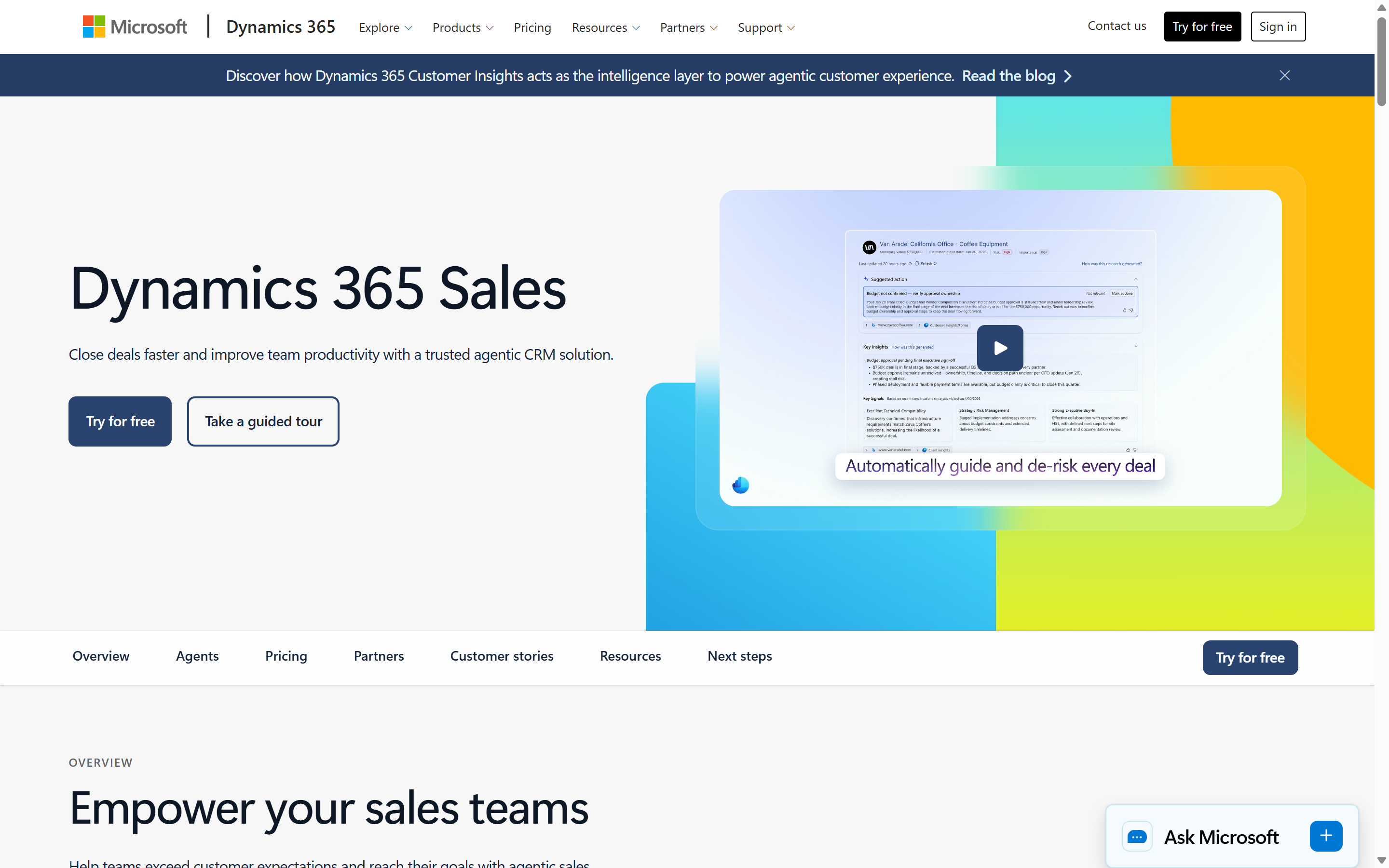 Starting point: the Sales product page with “Try for free”.
Using Sales Professional as the example:
- Go to the Sales product page and choose “Try for free”.
- Enter your email address. If you have a work account, it goes straight through.
- If you only have a personal address, you’ll see a note that a work account is required – and next to it, a “set up account” link. That’s the real treasure. Click it and Microsoft creates a fresh tenant for you, with an address in the pattern
yourname.onmicrosoft.com. You become its global administrator. That admin account is a full-fledged work account.
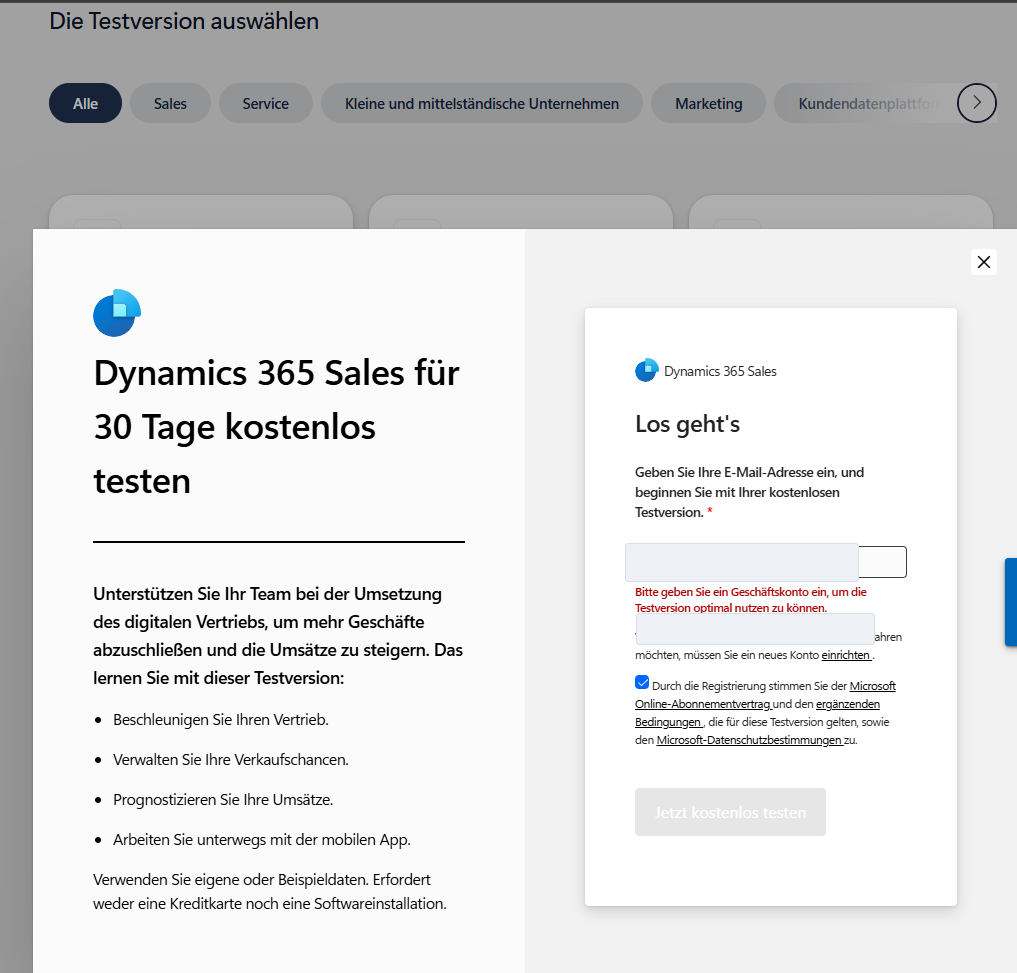 The decisive moment: instead of giving up, click “set up account” – this is where your tenant is born.
- A few details – country, company name, phone number – plus an SMS verification. Depending on the offer, the flow may also ask for a credit card, though often it doesn’t. Within a few minutes, the environment is up.
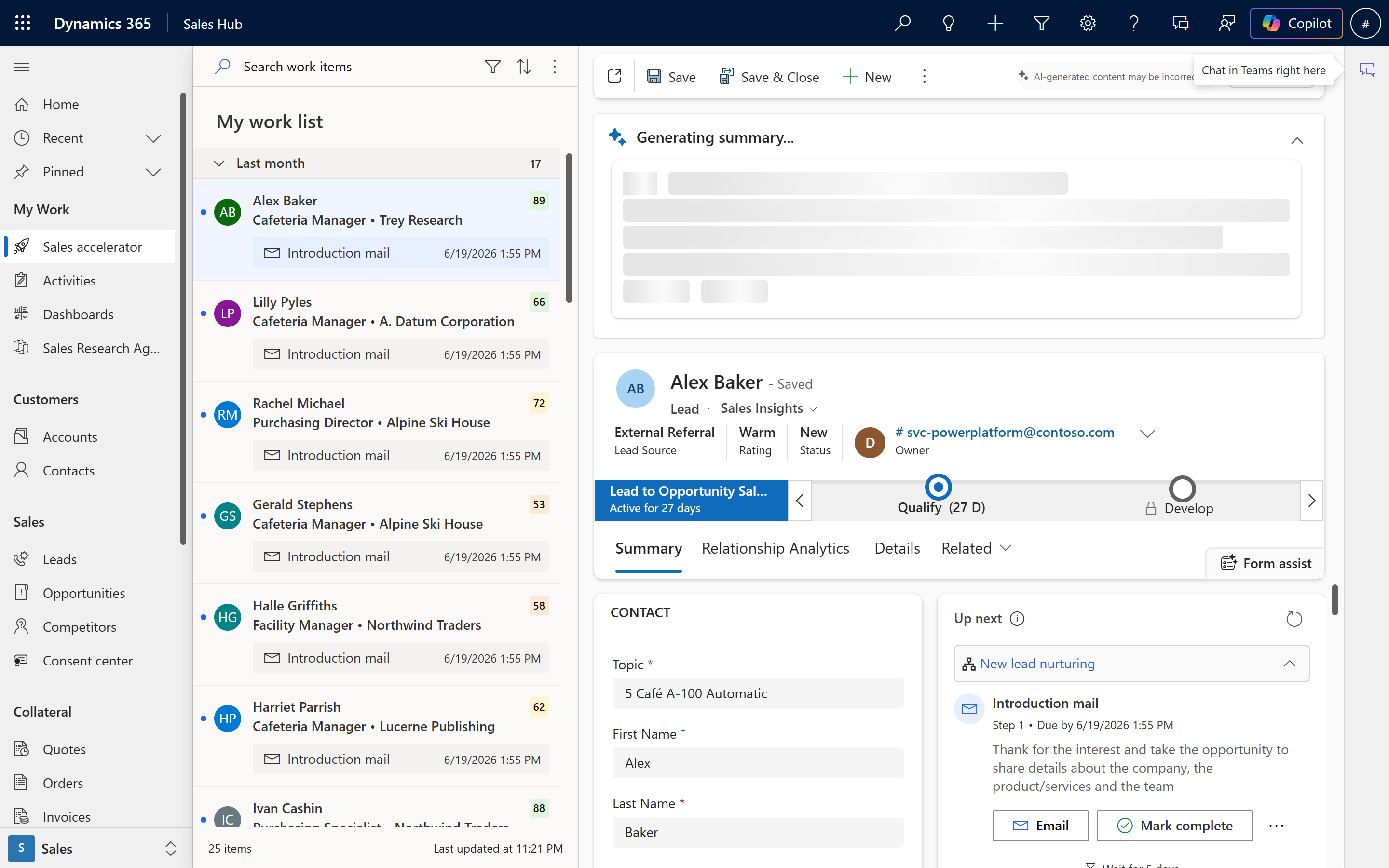 A few minutes later: the running Sales environment with sample data.
Worth knowing: you can have one active trial per app at a time, it runs for 30 days and can be extended once by another 30 days. After that, you can sign up again. And the tenant you just created stays with you – even when the Sales trial expires. That’s your free foundation for everything else.
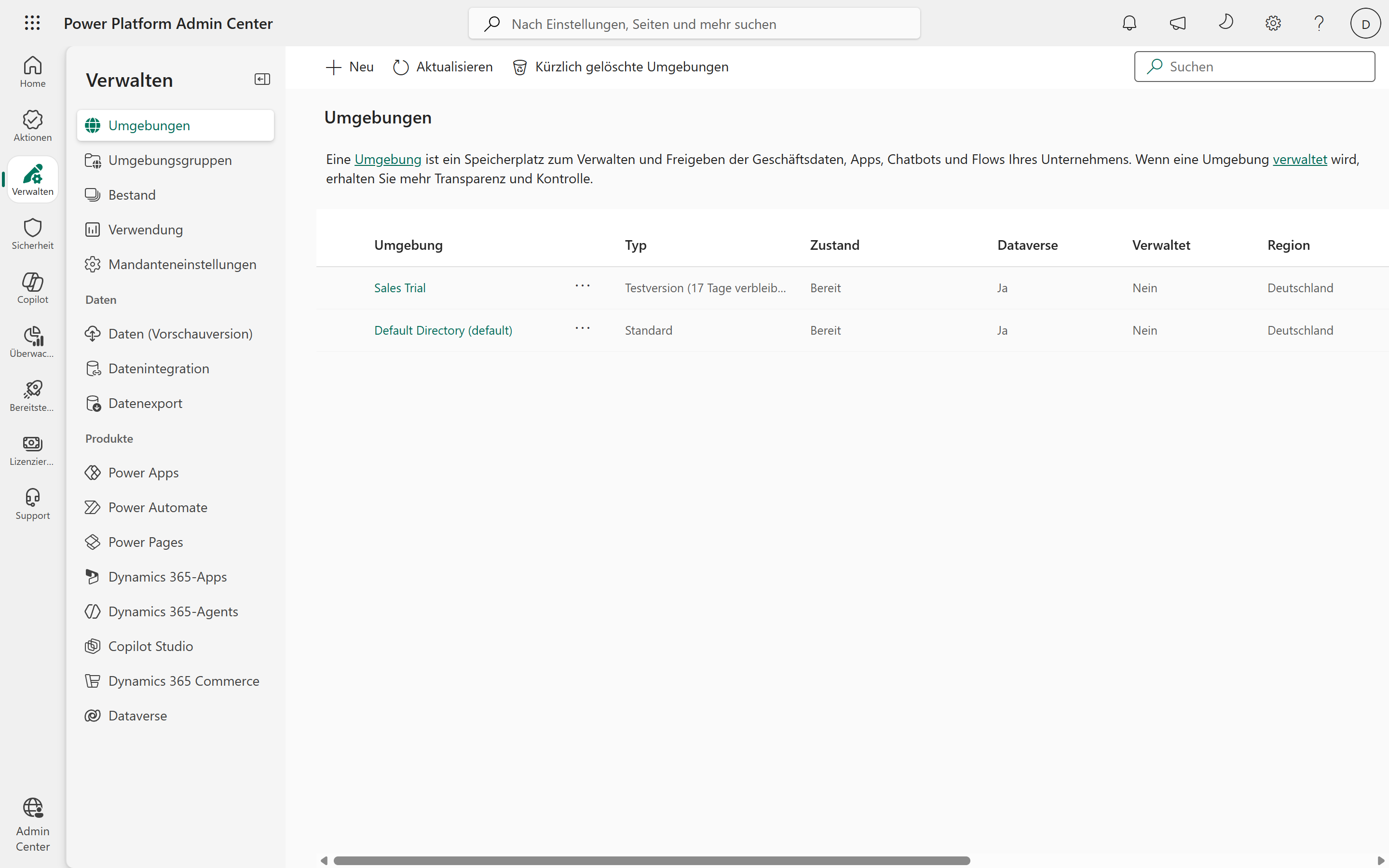 Your environment shows up in the Power Platform admin center – from here you manage everything yourself.
Route 2 – The partner way: MDX (formerly CDX)
If you’re at a Microsoft partner, a Microsoft employee or an MVP, the most convenient route runs through cdx.transform.microsoft.com – the platform is now officially called Microsoft Demo eXperiences (MDX), the URL unchanged (older guides still say “CDX”). It delivers fully pre-populated demo tenants for Microsoft 365 and Dynamics 365 – with sample users, data and demo scripts.
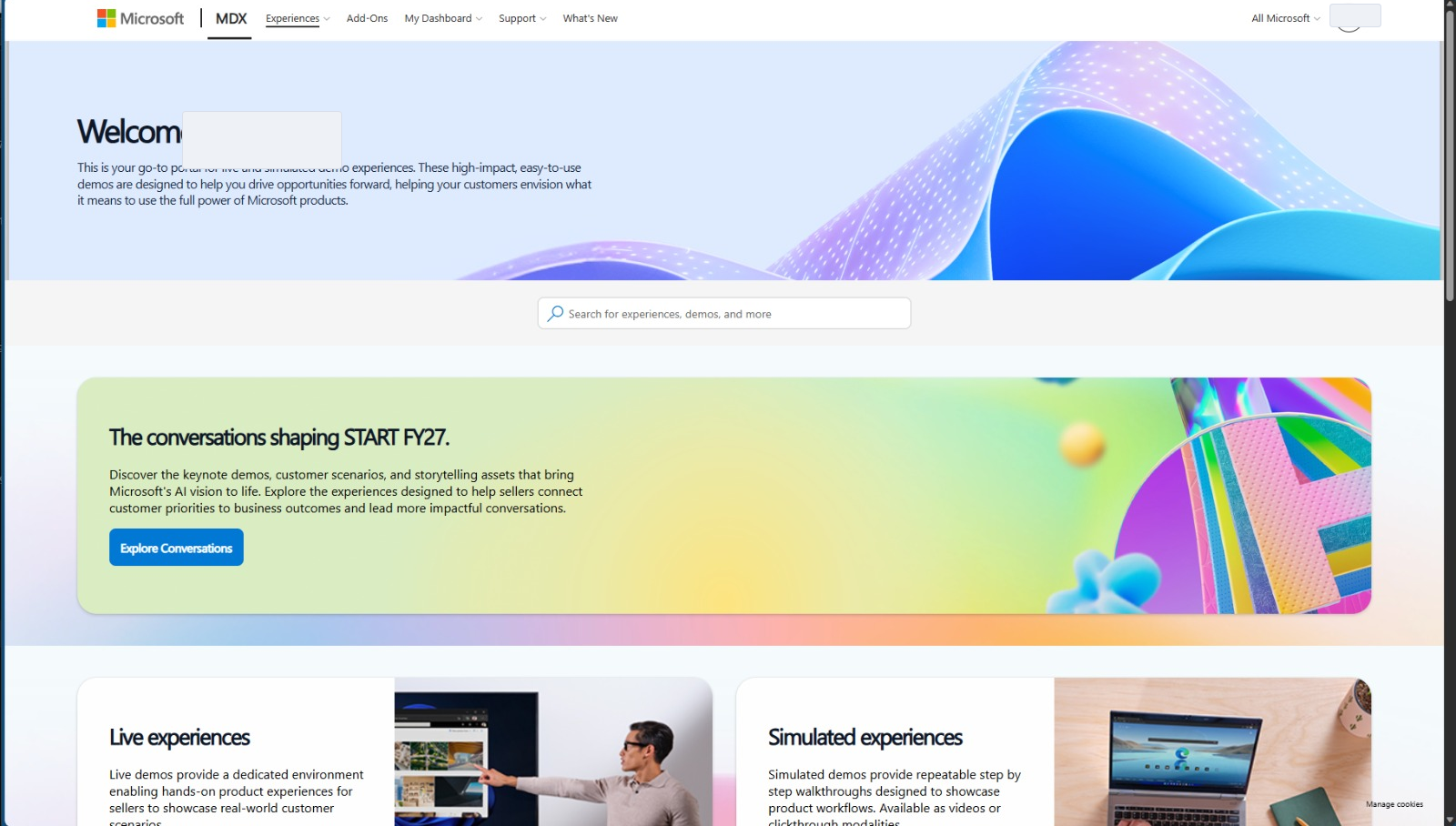 The MDX home page after login – where you pick your demo environment.
Sounds ideal. In practice, you need to know three catches, because older guides here are completely out of date:
- The limits were cut back in 2024. Instead of the former five parallel environments, there’s now only one concurrent demo environment with a 90-day lifespan, and you may create or delete at most two tenants per 30 days. Extensions are gone.
- The D365 tiles are often simply unavailable. This is exactly where most people stumble: individual Dynamics content packs – currently Sales Professional, and Business Central for a long time now – appear greyed out or marked “not available”, sometimes for months. The cause is the same licensing overhaul: experiences that need a tenant are disabled until licenses are available again. So if you’re counting on a Sales environment from MDX, you’re planning on sand.
- Access is finicky. MFA is mandatory, only Edge and Chrome are supported, third-party cookies must be allowed. Sometimes the tenant admin has to register the platform as a service principal first.
And the terms of use are unambiguous: for personal learning and demo purposes only, never to be handed to end customers.
The workaround when the tile is greyed out: create a plain Microsoft 365 demo tenant instead (e.g. with Business Premium content) – those usually work reliably. Sign in to office.com with the admin account you get, then request the actual Dynamics trial from inside that tenant via the normal product trial page (Route 1). Same pattern again: a tenant first, the app trial on top. For solo learners without partner access, MDX stays closed anyway – and even with partner access, it’s currently less reliable for Dynamics practice than its reputation suggests.
Route 3 – The Developer Program (E5 sandbox): the way that narrowed
For a long time the Microsoft 365 Developer Program was the insider tip: a free E5 tenant with 25 licenses, renewable again and again. Anyone still reading that as a default recommendation is reading old stock.
Since early 2024, access is tied to a qualification. The free, automatically renewing E5 sandbox now essentially goes to those who:
- hold an active Visual Studio Professional or Enterprise (standard) subscription – in which case the sandbox renews for as long as the subscription lasts, or
- are enrolled through the ISV Success Program or eligible tiers of the Microsoft AI Cloud Partner Program, or
- have Premier/Unified Support.
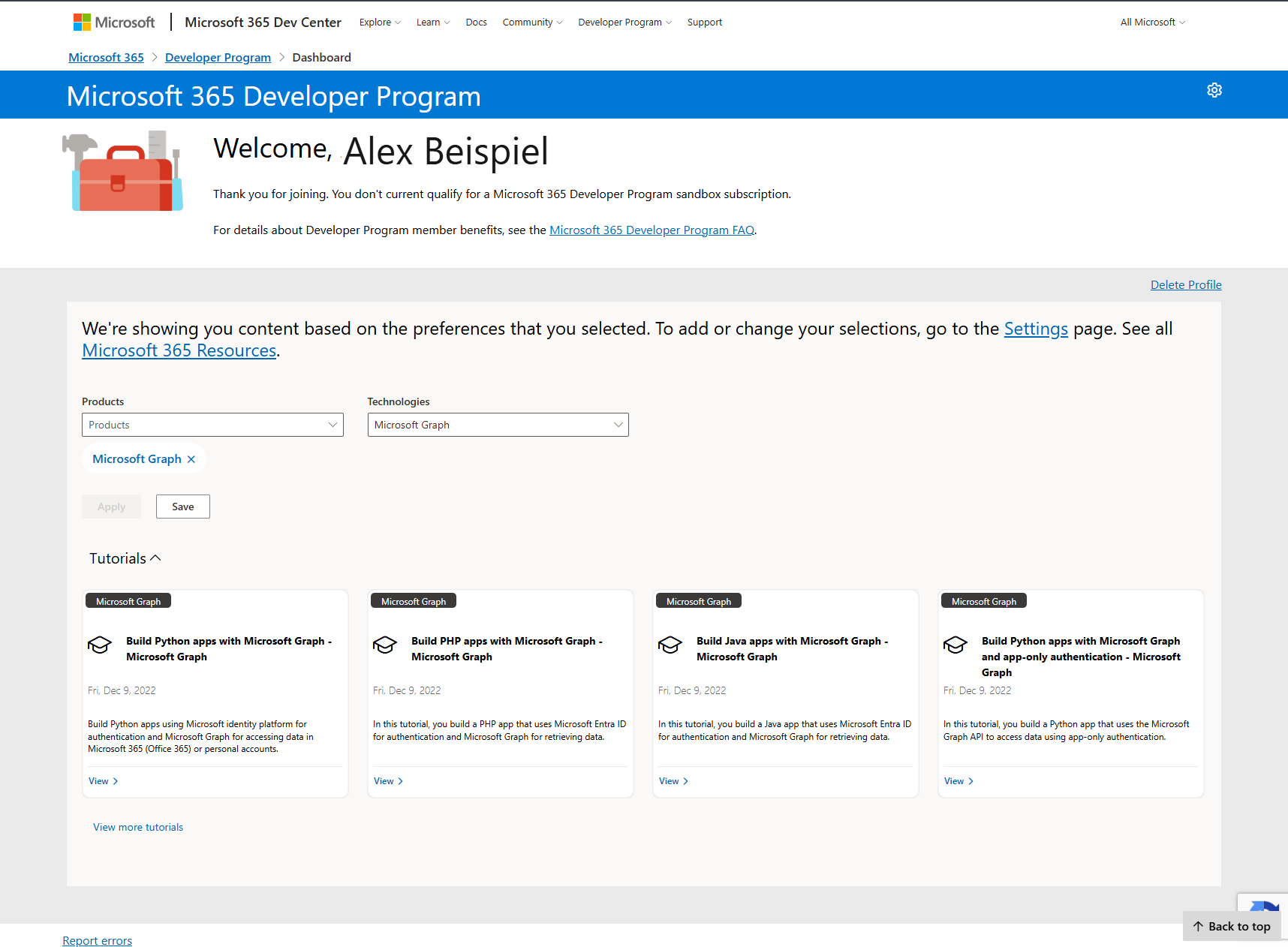 Without a qualification, the road ends here – a message many self-learners are seeing right now.
Without one of these qualifications, you’re greeted by the “you don’t currently qualify” message – no matter how neatly you fill in your profile. For many self-learners, this route is unfortunately closed. It’s still worth knowing: anyone who gets a Visual Studio subscription through university or an employer holds the most convenient permanent tenant of them all.
Route 4 – The Power Apps Developer Plan: the quiet permanent solution
For anyone who wants to work with Dataverse, model-driven apps and the Power Platform foundation of Dynamics, this is the underrated favourite. The Power Apps Developer Plan is free, gives you a full Dataverse development environment (up to three of them) with the same capabilities as the paid plans – just for development and test, not for production use.
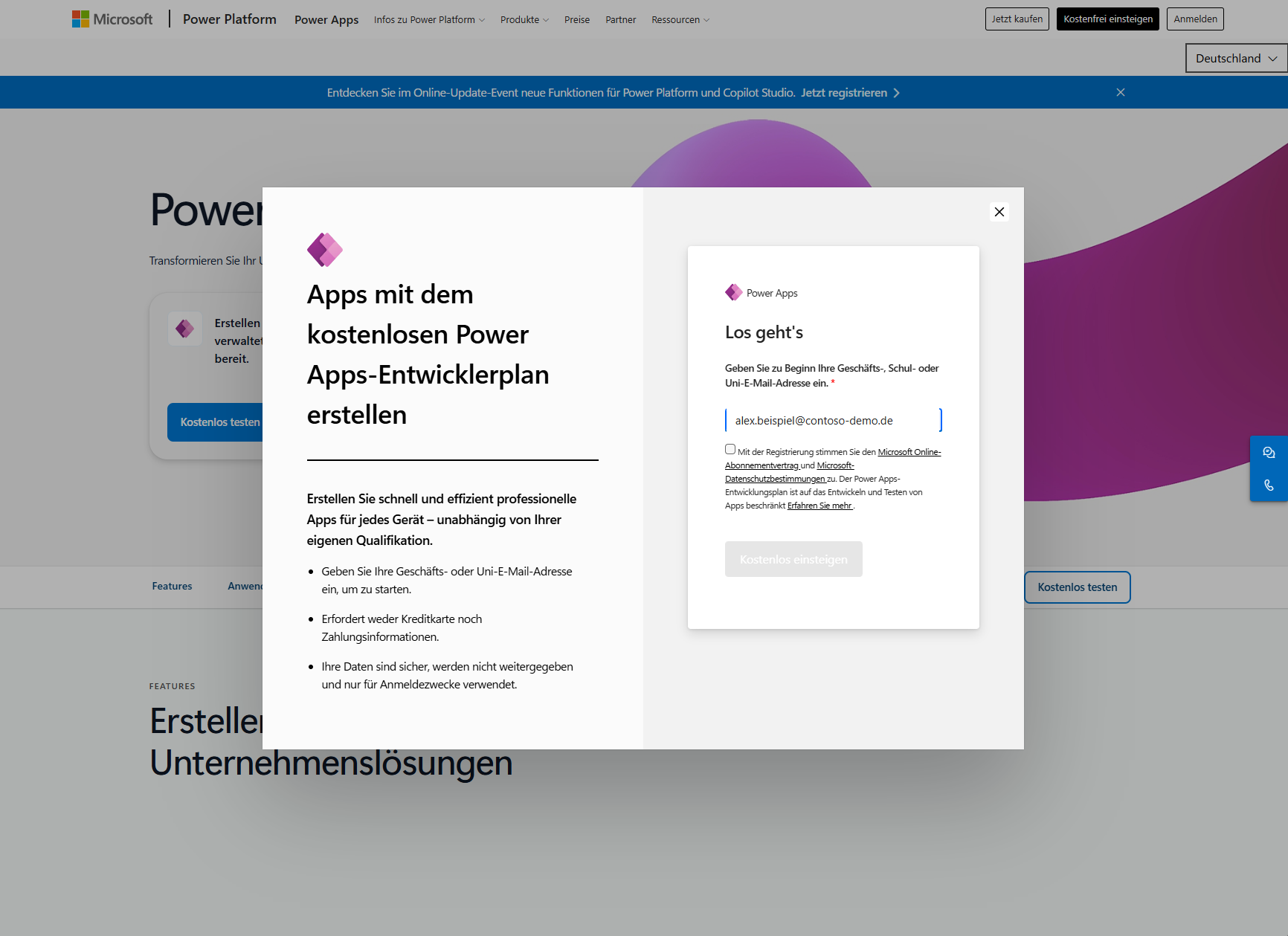 Free and permanent: the sign-up page for the Power Apps Developer Plan.
The catch – and here the circle closes back to Route 1: you can only sign up with a work or school account, not a personal one. That’s exactly why the order matters. Whoever starts a trial via the direct route first, creating their own onmicrosoft.com tenant in the process, then has the work account the Developer Plan requires. Trial first, Developer Plan second – that’s how a 30-day playground turns into a permanent learning environment.
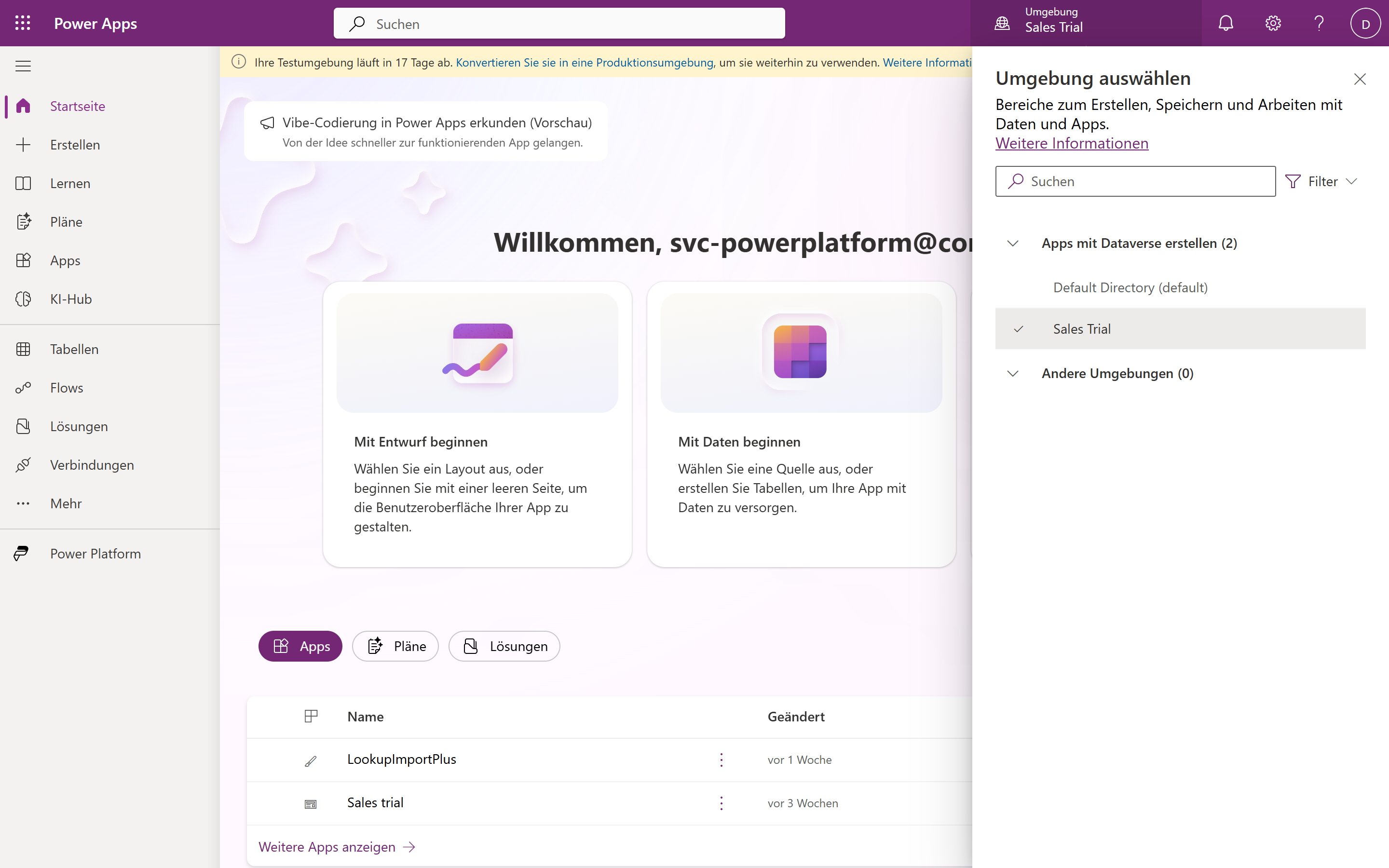 Your personal developer environment appears in the maker portal – permanent, as long as you keep using it.
Don’t forget one detail: development environments that sit inactive for 30 days are automatically disabled. Practise regularly and you keep them – leave them idle and you lose them.
Special case: Finance & Operations and the certification trap
Staying honest about the sore spot: the case described at the start was about F&O (Finance & Operations). And that’s precisely where there’s no convenient self-service trial like the one for Sales. F&O environments realistically run through MDX (with a matching Finance content pack) or via partner/customer projects – a purely private self-learner is worse off here than with the CE apps. For the learning path, the sandbox inside the Microsoft Learn modules helps as a supplement; but it isn’t always available, as many are painfully discovering right now.
In short: for Sales, Customer Service or Power Platform, the self-learner route is open. For pure F&O, the most convenient path runs through a partner.
The map at a glance
| Route | For whom | Account needed | Duration |
|---|---|---|---|
| Product trial (e.g. Sales Pro) | Anyone – a tenant is created on demand | personal is enough (tenant is born) | 30 days (+30) |
| MDX (formerly CDX) | Partner, MVP, MS employee | partner/MVP account | 1 environment, 90 days – D365 packs often unavailable |
| M365 Developer Program | VS subscribers, certain partners | qualified account | renewable while qualified |
| Power Apps Developer Plan | Power Platform learners | work/school account | permanent with active use |
Pitfalls that cost time
- Self-service trials can be blocked. In managed tenants, admins often disable self-registration. So: use the fresh tenant you created yourself, not your employer’s.
- No real customer data. Trial and demo environments are for playing. Production or customer data has no place there – in MDX it’s even explicitly forbidden.
- Keep an eye on the credit card. If an offer asks for a card, cancel in good time before it expires so nothing gets charged.
- Plan for MFA. MDX and newer tenants in particular enforce multi-factor. Having an authenticator app ready saves nerves.
Conclusion
The question “How do I get a Dynamics environment for free?” is best answered by turning it around: what do I sign in with? A personal account is enough to create your own tenant via the direct route – and that tenant is the key that unlocks the rest of the map: Developer Plan, further app trials, real practice. Once you’ve grasped the connection, you’ll never again sit in front of a greyed-out button and conclude that learning is impossible.
Status of offers and limits: July 2026. Microsoft changes these programmes regularly – when in doubt, check the relevant official page.